Introduction
Control Panel is the central dashboard within the Channel Manager where users can manage OTA connections, configure channel credentials, perform room and rate mapping, and access essential logs.
Through the Control Panel, you can search and select OTA channels, input connection details, import rate plans, map internal and OTA rate plans, and verify configuration updates. It serves as the starting point for all integration and mapping activities, ensuring smooth communication between your property system and OTA platforms.
Channel List
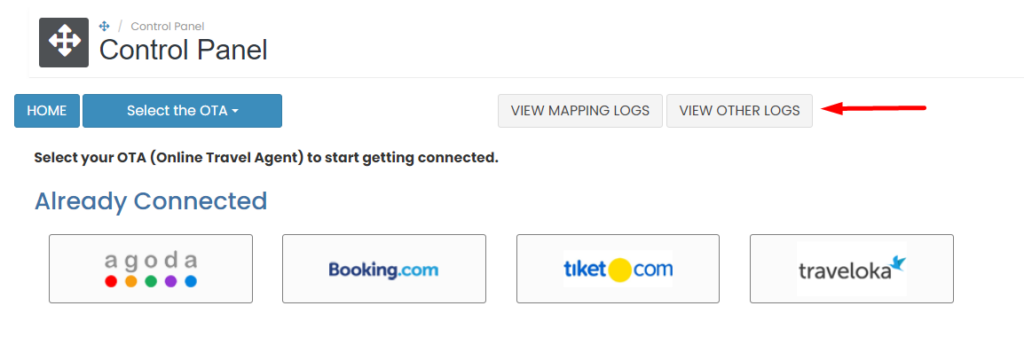
When you access the Control Panel menu, you will see the available OTA channels.
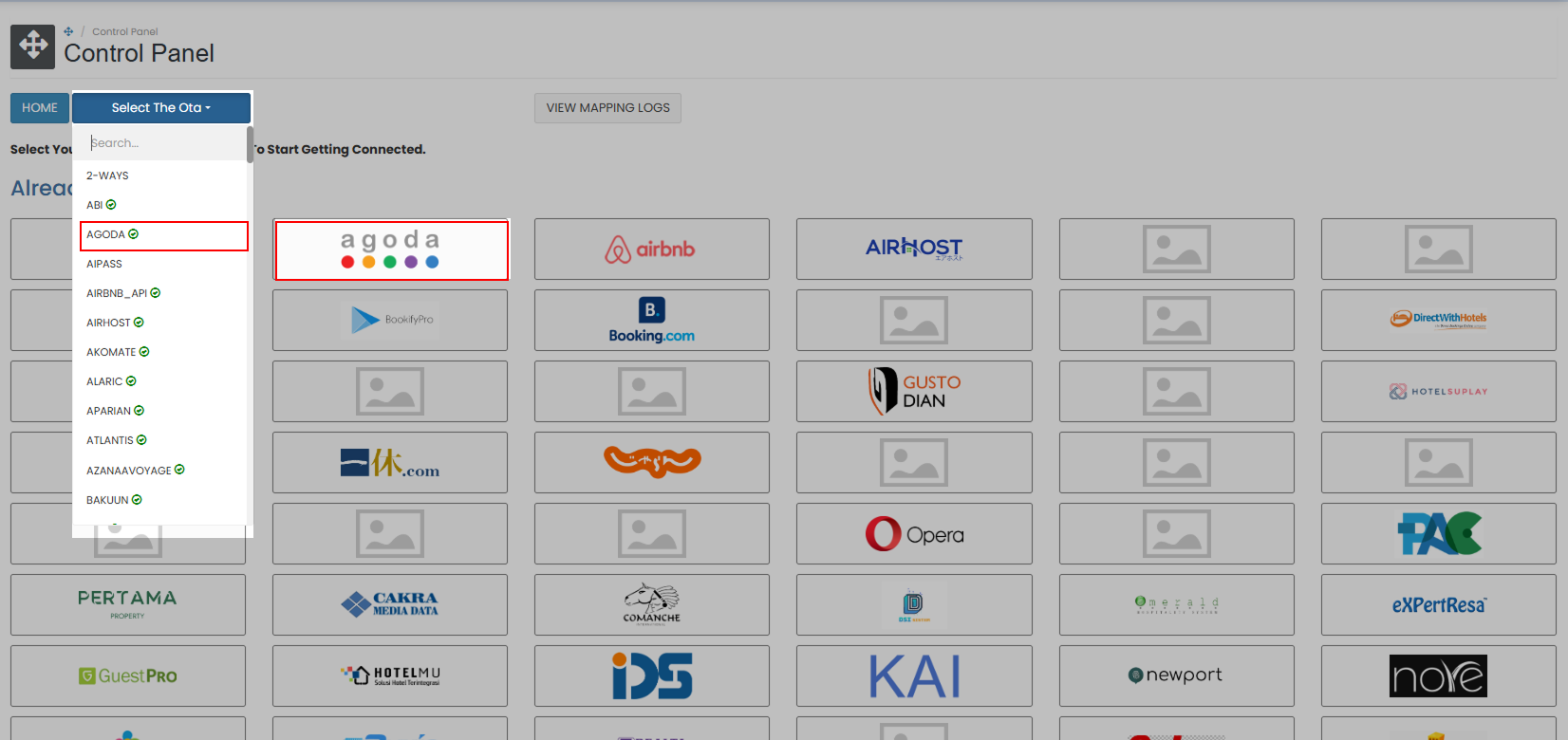
In Version 1, the available OTA channels are displayed individually. To access a specific OTA, you can either click the OTA directly or select it from the dropdown list at the top of the panel.
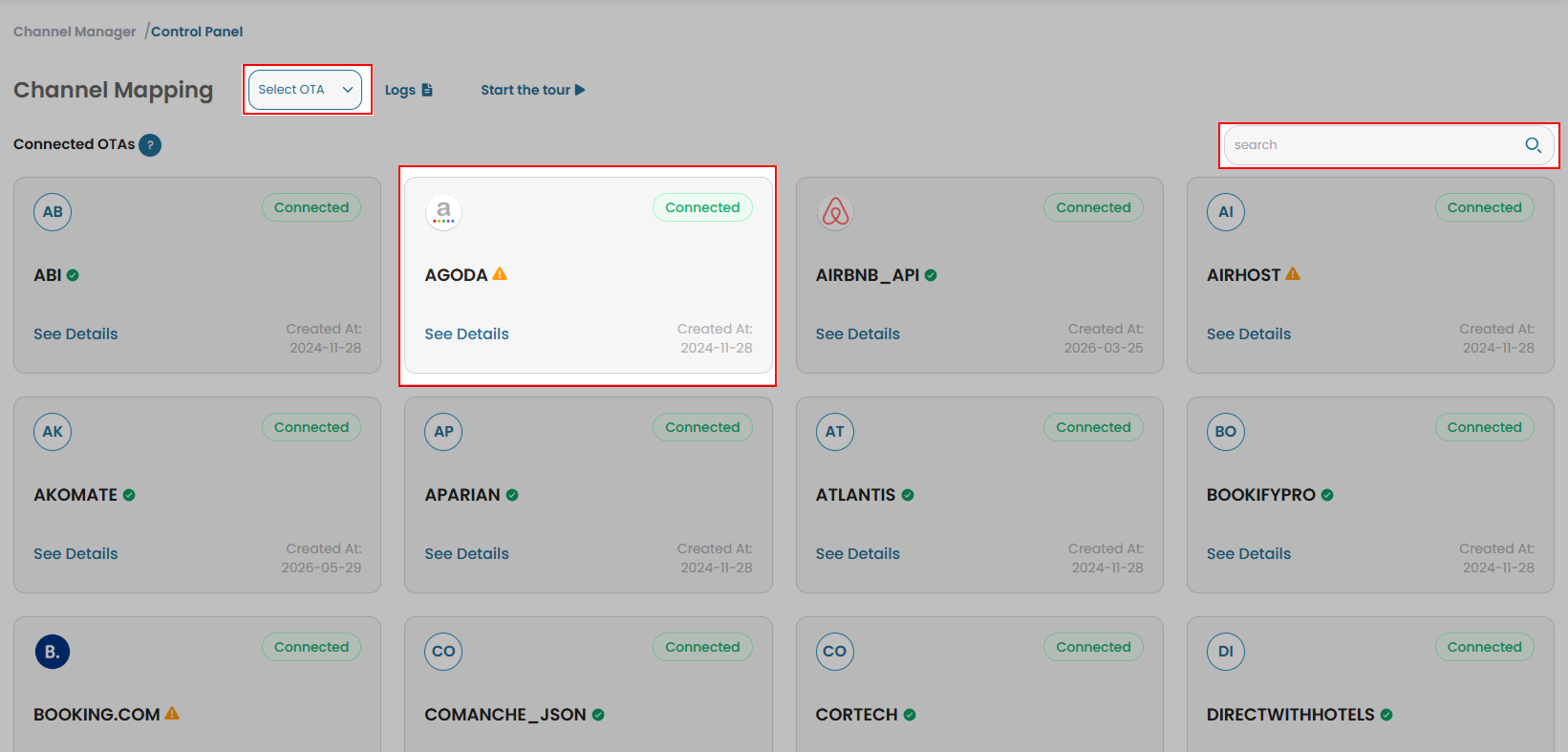
In Version 2, the OTA channels are displayed in the same format, with additional information such as their connection status. The connection status is represented by four different statuses:
| Icon | Status | Description |
|---|---|---|
 | Connected | The OTA is successfully connected and ready to use. |
 | Connecting | The system is currently establishing a connection with the OTA. |
 | Connection Failed | The connection attempt failed. Check the connection details and try again. |
 | Issue | An issue has been detected with the OTA connection. (e.g., unfinished mapping) |
Version 2 also provides a Search bar at the top-right of the panel. Instead of selecting an OTA from the dropdown, simply enter a keyword to display the matching channels.
Available OTA Channels
An OTA (Online Travel Agency) is a third-party platform that allows guests to search, compare, and book accommodation online. Connecting OTA channels to Channel Manager allows your property to synchronize room availability, rates, restrictions, and reservations automatically across multiple platforms.
Each OTA has its own configuration flow and requirements. Select an OTA from the list below to view its setup guide and configuration details.
























Available PMS Channels
A PMS (Property Management System) is the central system used to manage daily hotel operations such as reservations, check-in/check-out, room status, guest profiles, and billing. Integrating a PMS with Channel Manager helps synchronize rates, availability, restrictions, and reservation data between both systems for smoother operational management.
Each PMS has its own configuration flow and requirements. Select a PMS from the list below to view its setup guide and configuration details.
 |  |  |
|---|---|---|
| VHP | Airhost | GuestPro |
 |  |  |
| Twospaces New | Realta | Pertama |
 |  |  |
| Pactindo | Hotelmu | Gustodian |
 |  | |
| Skyhotel | PowerPro | Pelican |
Available Booking Engine Channels
An IBE (Internet Booking Engine) is a direct booking platform integrated into your property’s website, allowing guests to make reservations without using third-party platforms. Connecting an IBE to Channel Manager ensures that room availability, rates, and reservations remain accurate and synchronized between your website and your property system.
Each Booking Engine has its own configuration flow and requirements. Select a Booking Engine from the list below to view its setup guide and configuration details.
 |  | |
|---|---|---|
| Triplabook | Omni Hotelier | GuestPro - IBE |
 |  |  |
| Roiback | Booknpay | Alaric |
Available RMS Channels
A RMS (Revenue Management System) is a system used to optimize pricing strategies by analyzing demand, market trends, occupancy, and competitor rates. Integrating an RMS with Channel Manager helps automate pricing updates and improve revenue performance by ensuring the correct rates are distributed across connected channels.
Each RMS has its own configuration flow and requirements. Select a RMS from the list below to view its setup guide and configuration details.
 | ||
|---|---|---|
| Pricelabs |
Viewing Update History
View Last 10 Update History
Check the Logs regularly to identify errors or unsuccessful updates. In Version 1, you can view the 10 most recent update records by navigating to the Settings tab for the relevant OTA. Scroll down to the Logs table to review the update history.
A date filter is available to customize the data displayed in the table. Select the Start Date and End Date, then click Search to display logs within the selected date range.
The logs table displays the following information for each log entry:
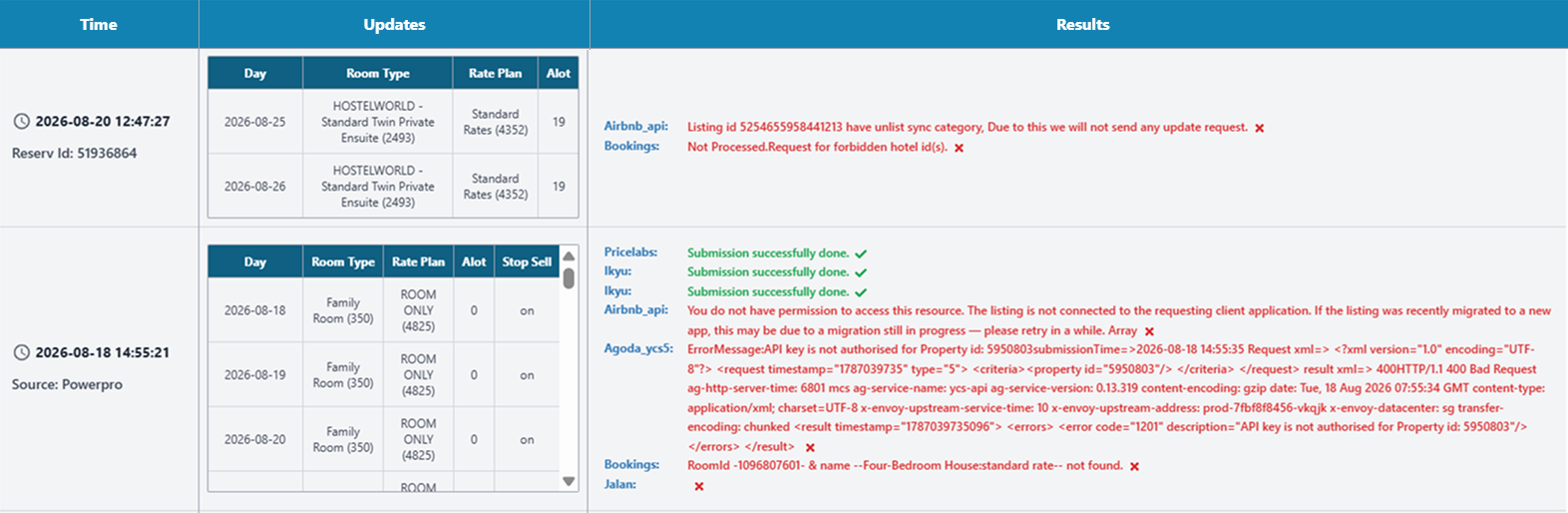
- Timestamp: Displays the date and time when the update was occurred. It also shows the source that triggered the update. If the update was triggered by a reservation, the Reservation ID is displayed in this column instead of the source.
- Updates: Details of the update, including:
- Day: The date affected by the update.
- Room Type: The room type affected by the update.
- Rate Plan: The rate plan affected by the update.
- Allotment: The inventory value updated.
- Results: Indicates the outcome of the update submission. A green indicator means the update was submitted successfully, while a red indicator means the update failed. The result includes:
- OTA Name: The OTA to which the update was submitted.
- Status: Displays Done when the update is successful or the corresponding error message when the update fails.
You can also view the Flatfile details by clicking the OTA name in the result column.
When you clicking the OTA name, the Flatfile will display:
- Property ID
- Flatfile Identity
- OTA Name
- Update Request
- Update Response
View Mapping Logs
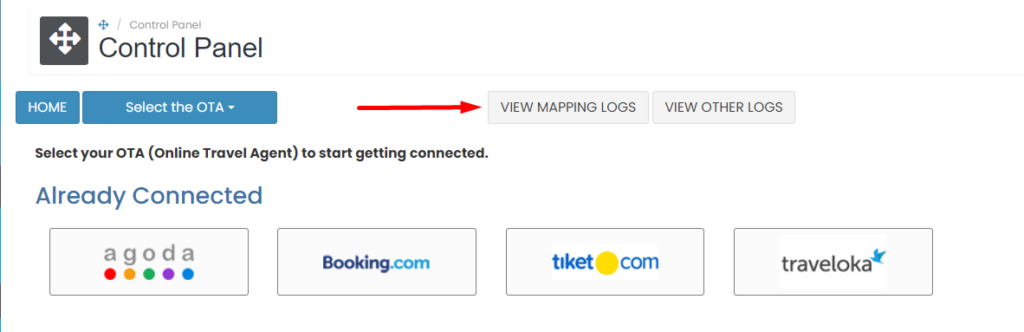
You can access Mapping Logs from the Control Panel menu.
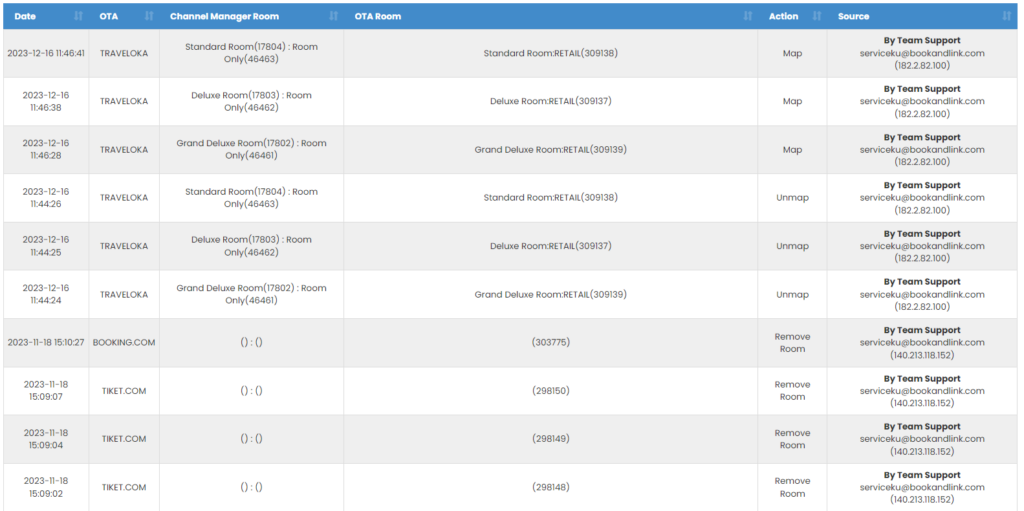
All updates made in the Mapping section will be recorded in the Mapping Logs.
[!NOTE]
Troubleshooting View Mapping Logs Issues
Mapping Logs not visible
- Ensure that you are logged in with the correct permissions to access the Control Panel.
- Confirm that there are updates made in the Mapping section, as empty logs will not display any records.
- Try refreshing the page or clearing the browser cache if the logs fail to load.
Unable to access Mapping Logs
- Check that you have the necessary privileges to view the Mapping Logs in the Control Panel.
- Ensure there are no connection issues with the server or platform causing delays in accessing the logs.
View Other Logs
You can access Other Logs from menu Control panel.
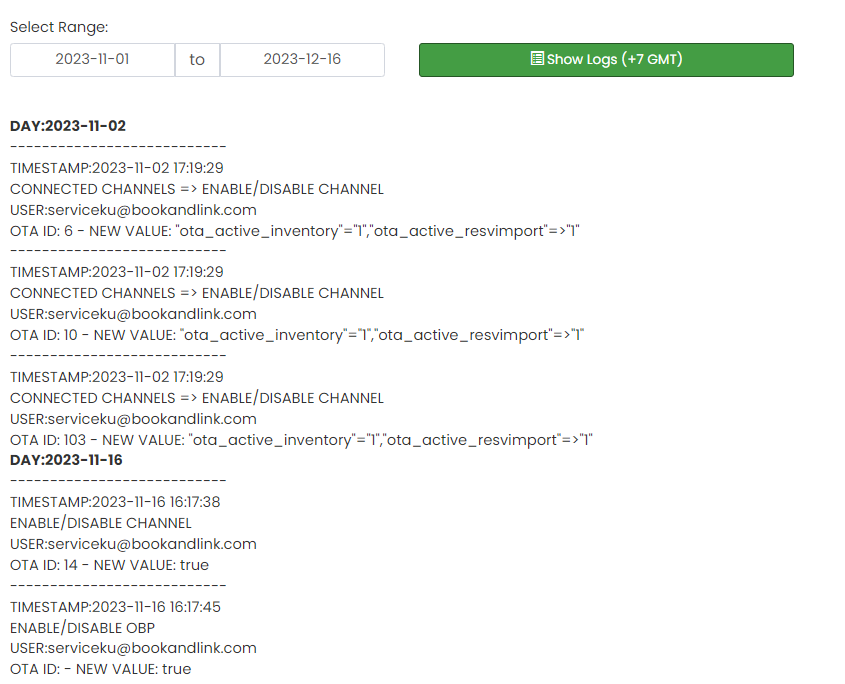
Other log will recorded activity such as : add/remove room, update room/rateplan setting, add/remove rateplan, enable/disable channel, rate multiplier set up, cancel reservation from Booking list menu, etc.
[!NOTE]
Troubleshooting View Other Logs Issues
Other Logs not visible
- Confirm that actions have been taken in the system (e.g., adding/removing rooms, updating settings) that would generate logs.
- If no logs appear, check that your user account has the necessary permissions to view these logs.
- Try reloading the page or clearing the browser cache to resolve any display issues.
Cannot access Other Logs
- Ensure your account has appropriate permissions to access Other Logs from the Control Panel.
- Make sure you are connected to the platform without interruptions. If needed, log out and log back in to reset the session.