Introduction
The Booking List page in Channel Manager provides a centralized view of all reservations received from connected channels. This page allows you to search, import, export, and manage reservation data more efficiently based on your property’s operational needs.
You can use various filtering and search options to quickly locate specific reservations, monitor booking activity, and resolve reservation-related issues such as mapping errors.
Note: To view the latest version of this documentation, please refer to Booking List V2.
Search by Criteria
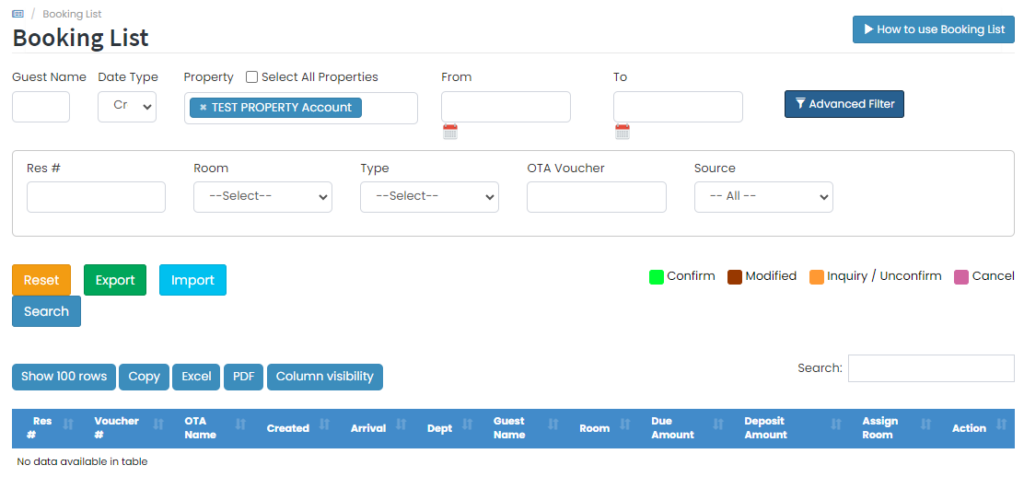
The Search by Criteria feature allows you to search reservations using specific filters such as guest name or reservation dates. You can search reservations by:
- Guest Name
- Date Type
- Created Date
- Arrival Date
- Departure Date
How to Search Reservations
- Navigate to the Booking List page.
- Select the search criteria you want to use.
- To search by guest name:
- Select Guest Name in the Search By field.
- Enter the guest name in the search field.
- Click Search.
- To search by date:
- Select the preferred Date Type:
- Created
- Arrival
- Departure
- Select the From and To date range.
- Click Search.
- Select the preferred Date Type:
- For more specific searches, click Advance Filter to display additional filtering options.
How to Import Reservation
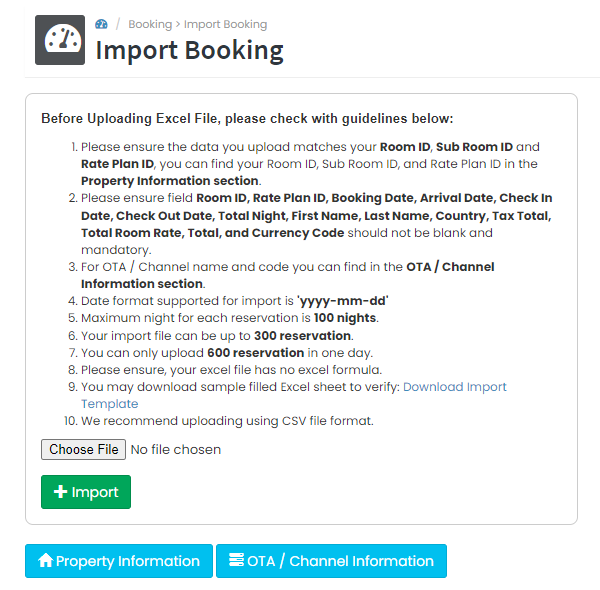
The Import Reservation feature allows you to upload reservation data manually using the provided import template.
How to Import Reservations
- Download the Import Reservation Template.
- Fill in the reservation data based on the provided template format.
- Save the completed file in Microsoft Excel (.xlsx) format.
- Click Choose File and select the completed import file.
- Upload the file to begin the import process.
[!NOTE]
Import Reservation Guidelines
- Make sure the uploaded file uses the correct Excel format.
- It is recommended to upload a small number of reservations first for validation before importing larger data sets.
Error Mapping
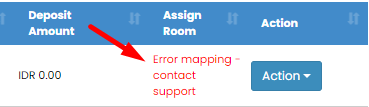
Sometimes reservations may appear with an Error Mapping status in the Booking List. This usually occurs because the room or rate plan mapping configuration in the Control Panel is incomplete or incorrect.
Reservations with an error mapping status will not reduce room availability until the mapping issue is resolved.

How to Resolve Error Mapping
-
Click the Error Mapping text on the reservation.
-
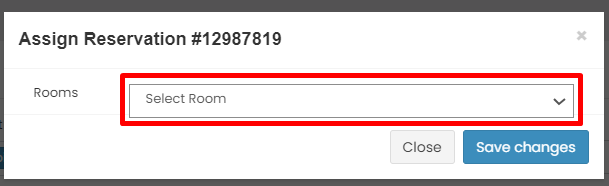
Select the correct room mapping for the reservation.
-
Click Save to apply the mapping.
[!NOTE]
Important Information
- Make sure you know the exact room booked by the guest by checking:
- The original OTA voucher
- The OTA extranet
- After resolving the reservation mapping, verify the room and rate plan configuration in:
- Control Panel → Mapping
- Control Panel → Assignment
This helps prevent the same mapping issue from happening again in future reservations.
For more information about mapping configuration, please refer to: Control Panel Mapping Documentation