Introduction
The Create Reservation page allows you to manually create a new reservation directly from the Channel Manager. This feature is useful for handling direct bookings, walk-in guests, offline reservations, or bookings received outside connected OTA channels.
Through this page, you can enter reservation details such as room information, guest information, stay dates, payment details, taxes, and additional charges before saving the reservation into the system.
To view the latest version of this documentation, please refer to Create Reservation V2.
Accessing Create Reservation
Here’s how you can access the Create Reservation page:
-
Navigate to the Bookings menu from the sidebar.
-
Click Create Reservation.

Room Information
The Room Information section is used to define the booking details for the reservation.
How to Fill Room Information
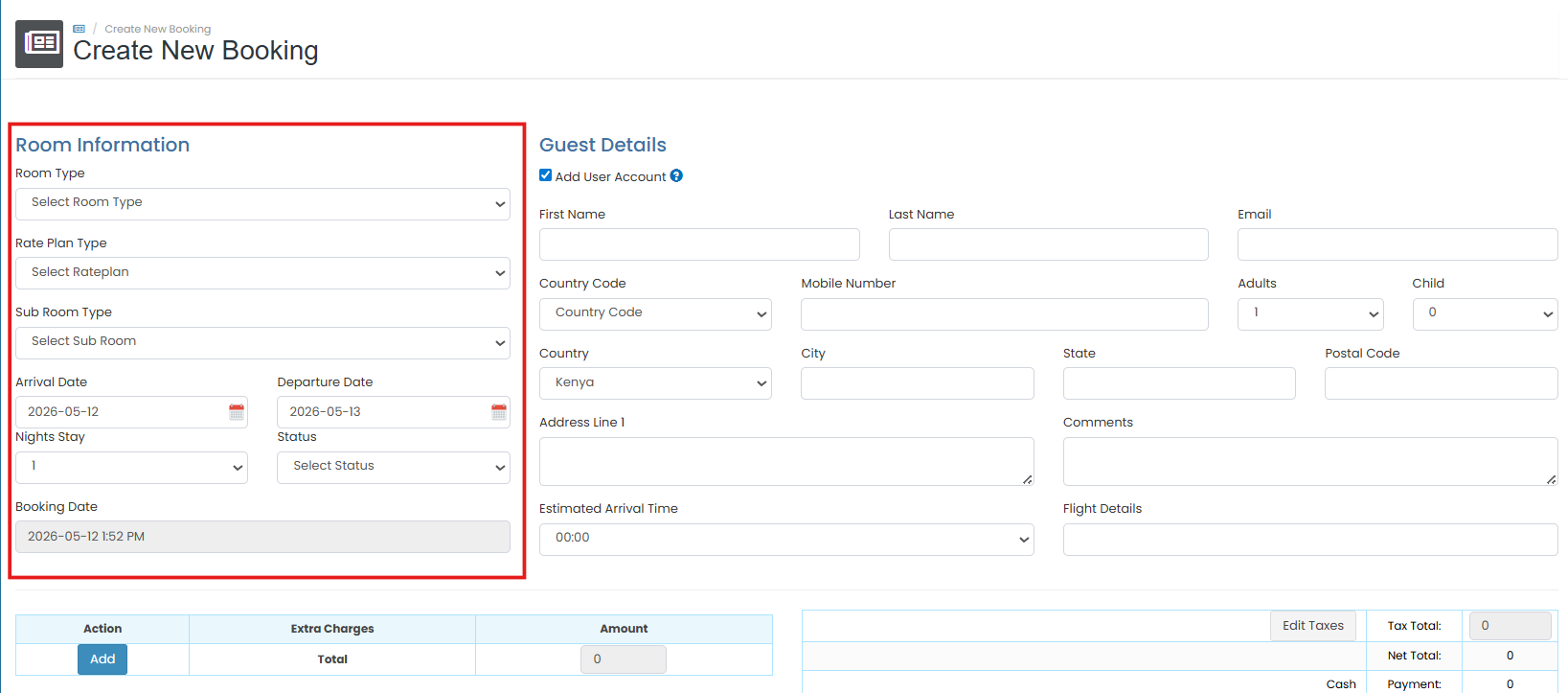
- Select the Room Type for the reservation.
- Select the applicable Rate Plan Type.
- Choose the Sub Room Type if available.
- Set the Arrival Date and Departure Date
- The system will automatically calculate the Nights Stay based on the selected dates.
- Select the reservation Status.
- Verify the Booking Date information.
[!NOTE]
Room Information Notes
Only active rooms and rate plans will appear in the selection list.
Ensure the selected room and rate plan are correctly mapped and available.
Changing the arrival or departure date may automatically recalculate the number of nights.
Guest Details
The Guest Details section is used to enter the guest’s personal and contact information.
How to Fill Guest Details
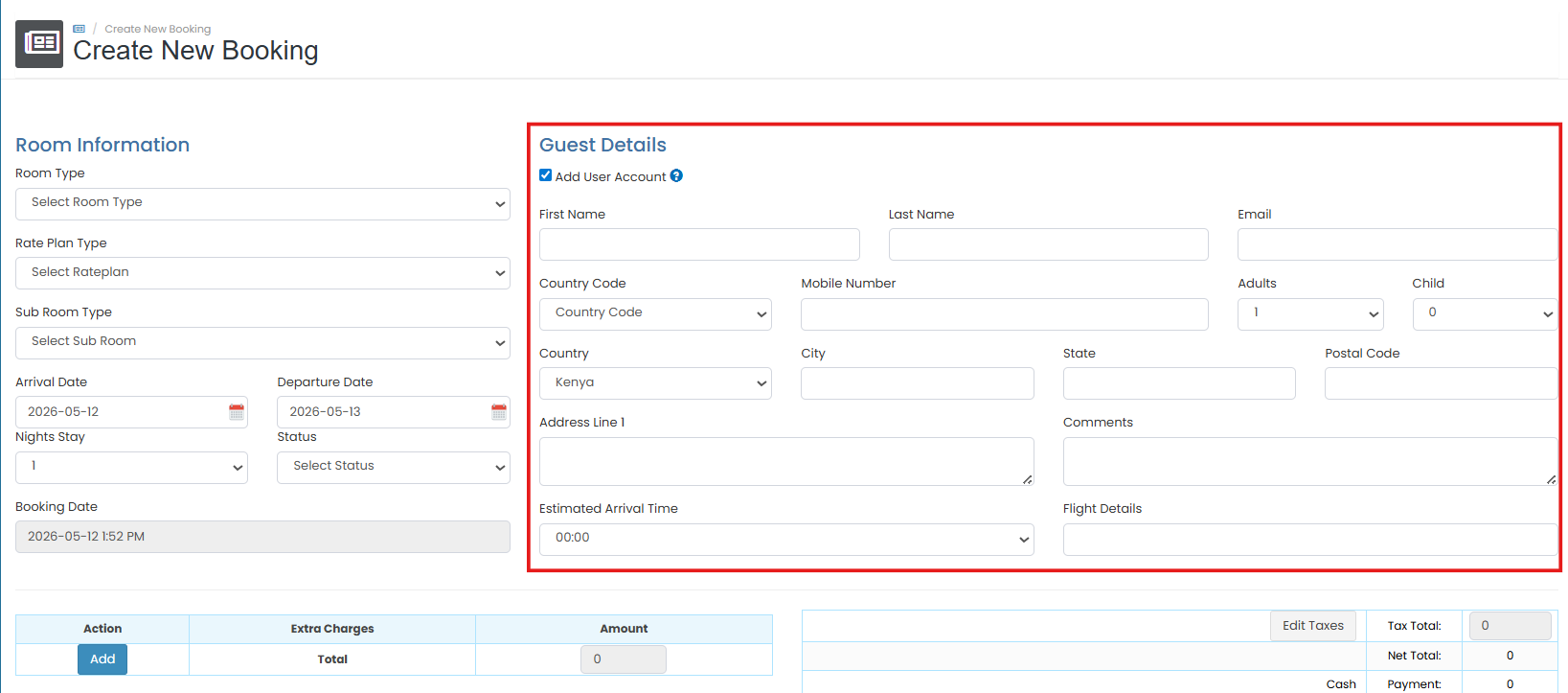
- Enter the guest’s First Name and Last Name.
- Input the guest’s Email Address.
- Select the Country Code and enter the Mobile Number.
- Fill in the guest’s address information:
- Country
- City
- State
- Postal Code
- Address Line
- Enter the Estimated Arrival Time if available.
- Fill in Flight Details if required.
- Add additional notes in the Comments field if necessary.
[!NOTE]
Guest Details Notes
The email address will be used for reservation notifications and invoice delivery.
Flight details and estimated arrival time can help the property prepare for guest arrival.
Comments are internal notes related to the reservation.
Extra Charges
The Extra Charges section allows you to add additional fees or services to the reservation (e.g., Extra bed, Breakfast, Cleaning fee, etc.)
How to Add Extra Charges
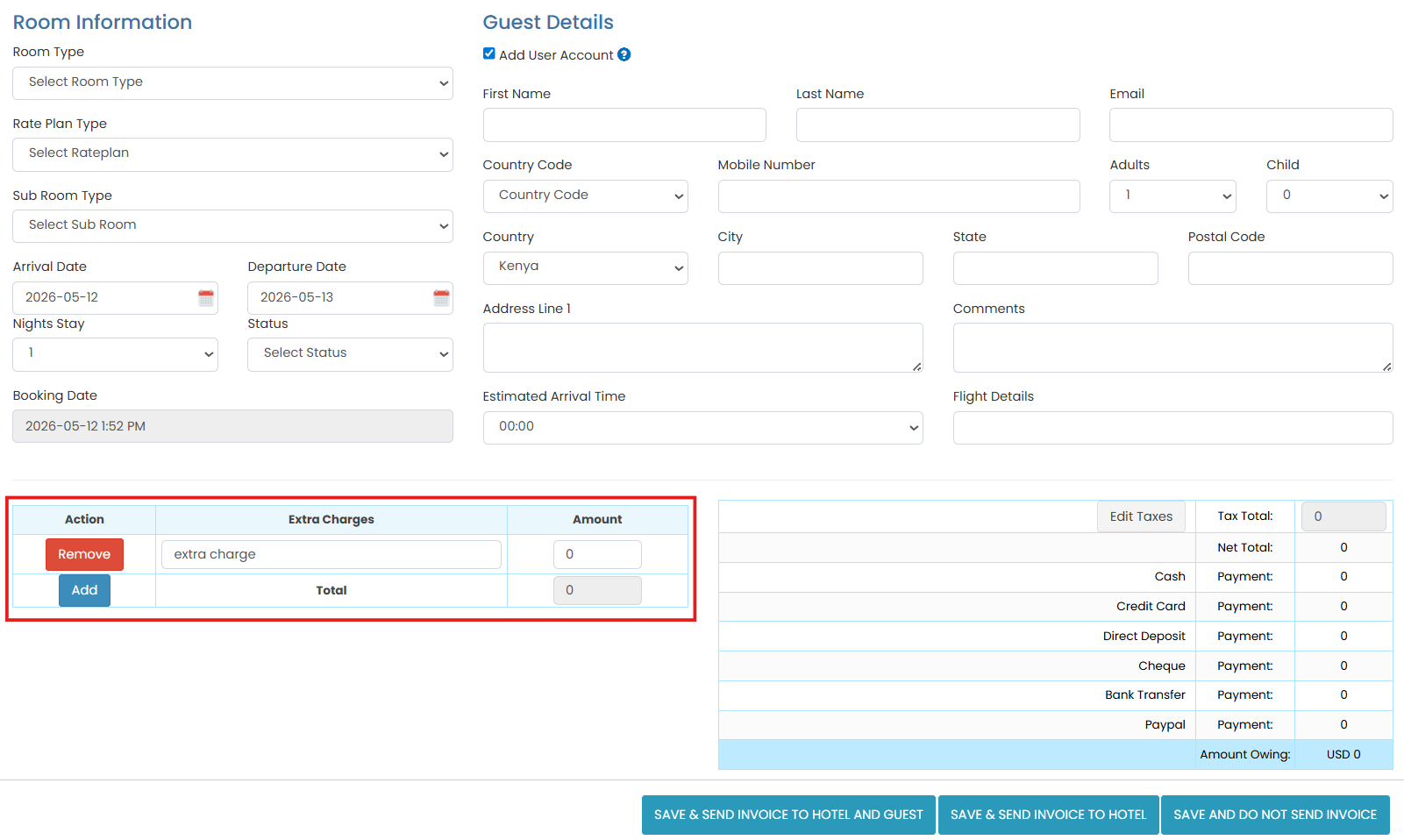
- Click the Add button in the Extra Charges section.
- Enter the charge description and amount.
- Repeat the process if multiple additional charges are needed.
- The system will automatically calculate the total amount.
Taxes and Payment Summary
The Taxes and Payment Summary section displays the reservation financial summary, including Taxes, Net Total, Payment Breakdown, Outstanding Balance.
How to Configure Taxes and Payments
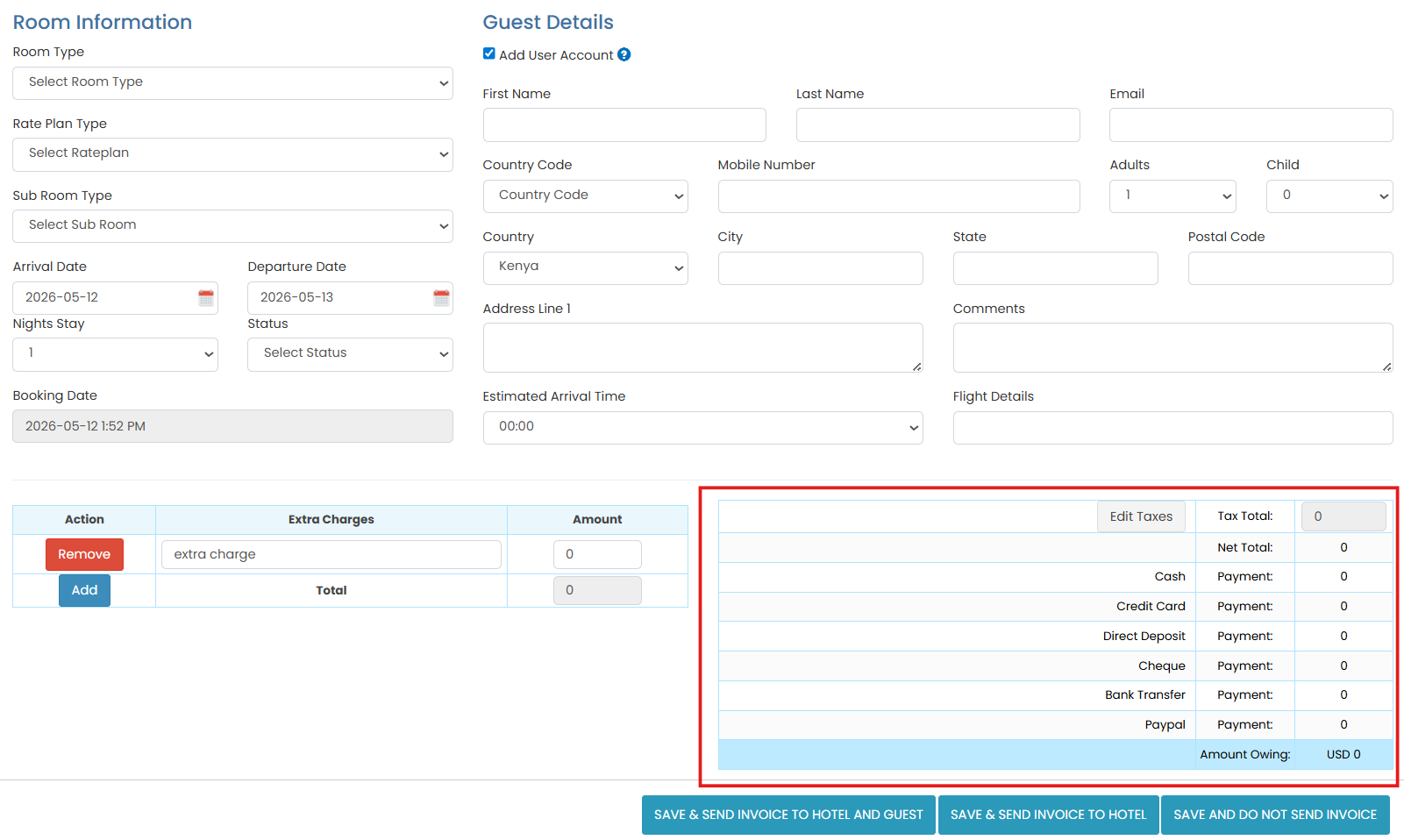
- Click Edit Taxes if you need to modify tax configuration.
- Review the reservation Net Total.
- Enter payment amounts based on the selected payment method.
- Verify the remaining Amount Owing before saving the reservation.
Save Reservation
After completing all reservation details, you can choose one of the available save options:
- Complete all required reservation information.
- Select the preferred save option.
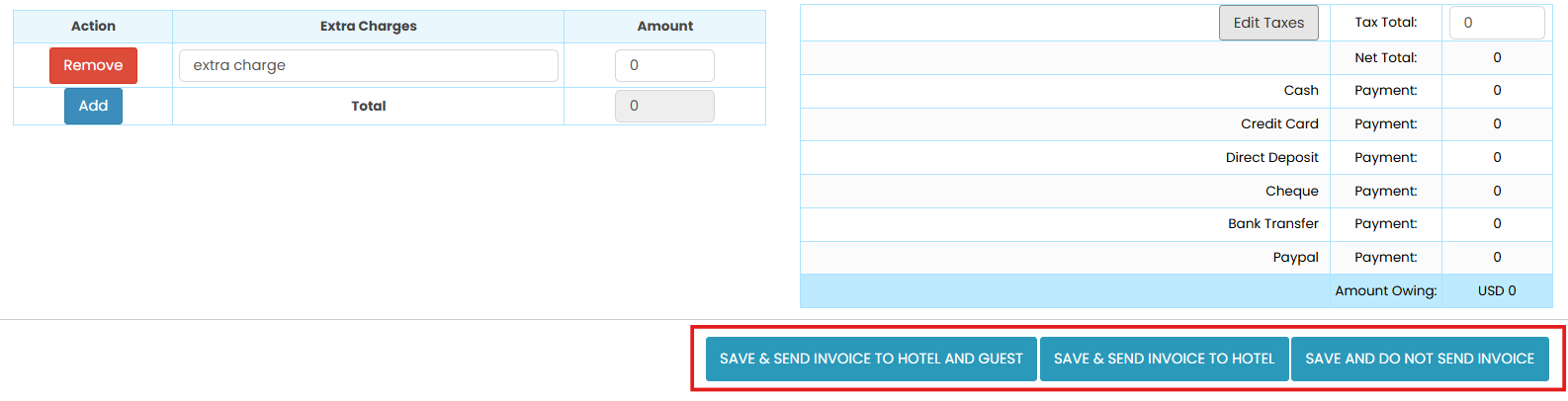
- Save & Send Invoice to Hotel and Guest: Saves the reservation and sends the invoice to both the hotel and guest email.
- Save & Send Invoice to Hotel: Saves the reservation and sends the invoice only to the hotel.
- Save and Do Not Send Invoice: Saves the reservation without sending any invoice email.
- The reservation will be created and stored in the Booking List.
[!NOTE]
Troubleshooting Create Reservation
Room Type or Rate Plan not appearing
Ensure the room and rate plan are active in the system.
Verify that room mapping configuration has been completed correctly.
Unable to save reservation
Make sure all required fields are filled correctly.
Check the arrival and departure dates.
Invoice email not received
Verify the guest email address is entered correctly.
Check spam or junk mail folders.
Incorrect total amount
- Review taxes and extra charges configuration before saving the reservation.