The Dashboard section in Channelku provides information of important announcements, key performance and operational metrics. After successfully logging in, you can monitor and analyze all booking-related data efficiently.
Dashboard
To access this page, simply log in to Channelku and select Dashboard on the side menu. The Dashboard page will display sections:
Quick Access
This section allows you to customize a panel with shortcut buttons for quick access to various system features. You can create up to five quick access buttons by following these steps:
- Click the edit quick access button with pencil cion

- Select option the features, then click Save Changes button.
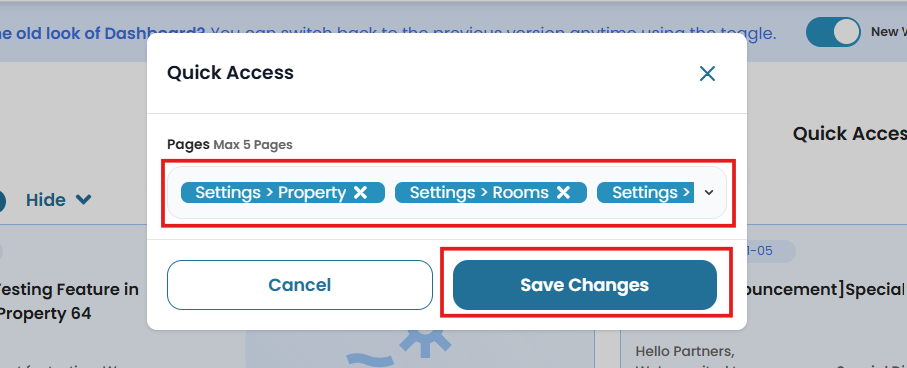
- Now, you can see the quick access panel on right top corner.

Announcement
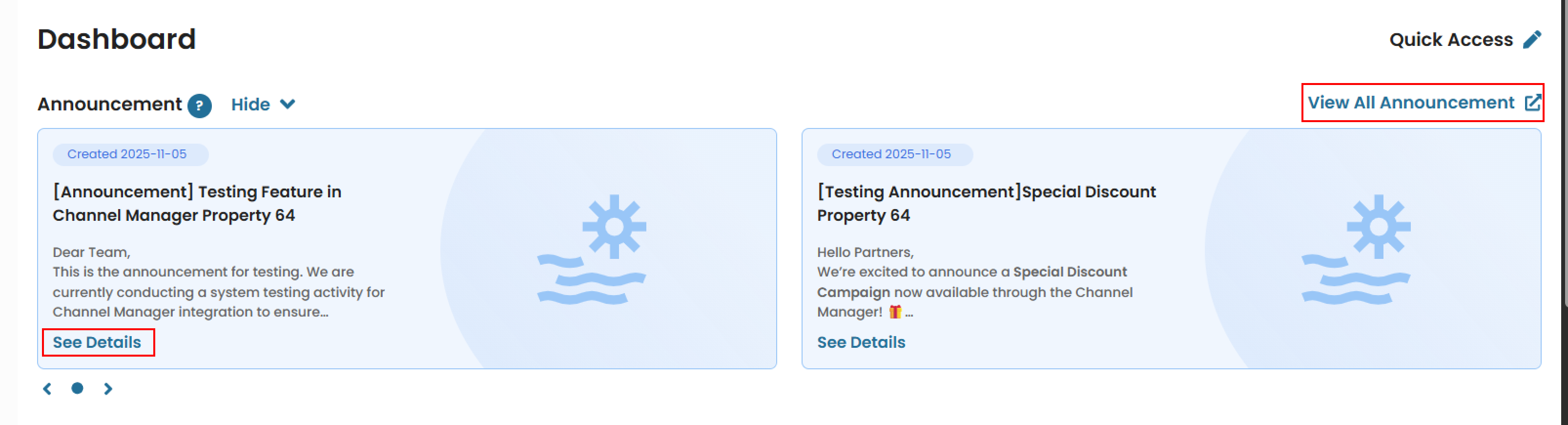
This section displays important announcements or notifications related to the system and channel updates. You can view the announcements detail by click View All Announcement or See Details.
Revenue Summary
This section provides an overview of the property’s total revenue performance across key time periods. You can quickly see how revenue compares to previous benchmarks and track overall growth or decline.
At the top of the section, you can select your preferred currency (e.g., IDR, USD) using the dropdown menu.
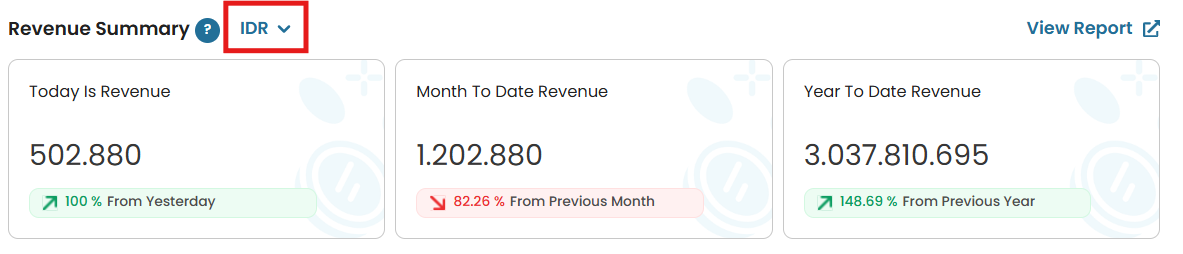
- Today’s Revenue
- The total revenue generated today, along with the percentage change compared to yesterday.
- Month-to-Date (MTD) Revenue
- The accumulated revenue from the first day of the current month up to today, with a comparison against the previous month’s MTD for the same period.
- Year-to-Date (YTD) Revenue
- The accumulated revenue from January 1 of the current year up to today, compared against the same period in the previous year. This helps you understand daily performance, monthly trends, and annual progress at a glance.
Booking Overview
Provides a summary of today’s booking activity, helping monitor occupancy and guest movements in real time.

- Bookings Today
- Total number of new bookings created today.
- Rooms Available Today
- Number of rooms currently available for sale or assignment today.
- Check-In
- Number of guests scheduled to check in today.
- Check-Out
- Number of guests scheduled to check out today. Useful for daily operational planning and front office preparation.
Recent Bookings
Displays the 10 most recent bookings recorded in the system, providing a clear overview of the latest reservation activities.
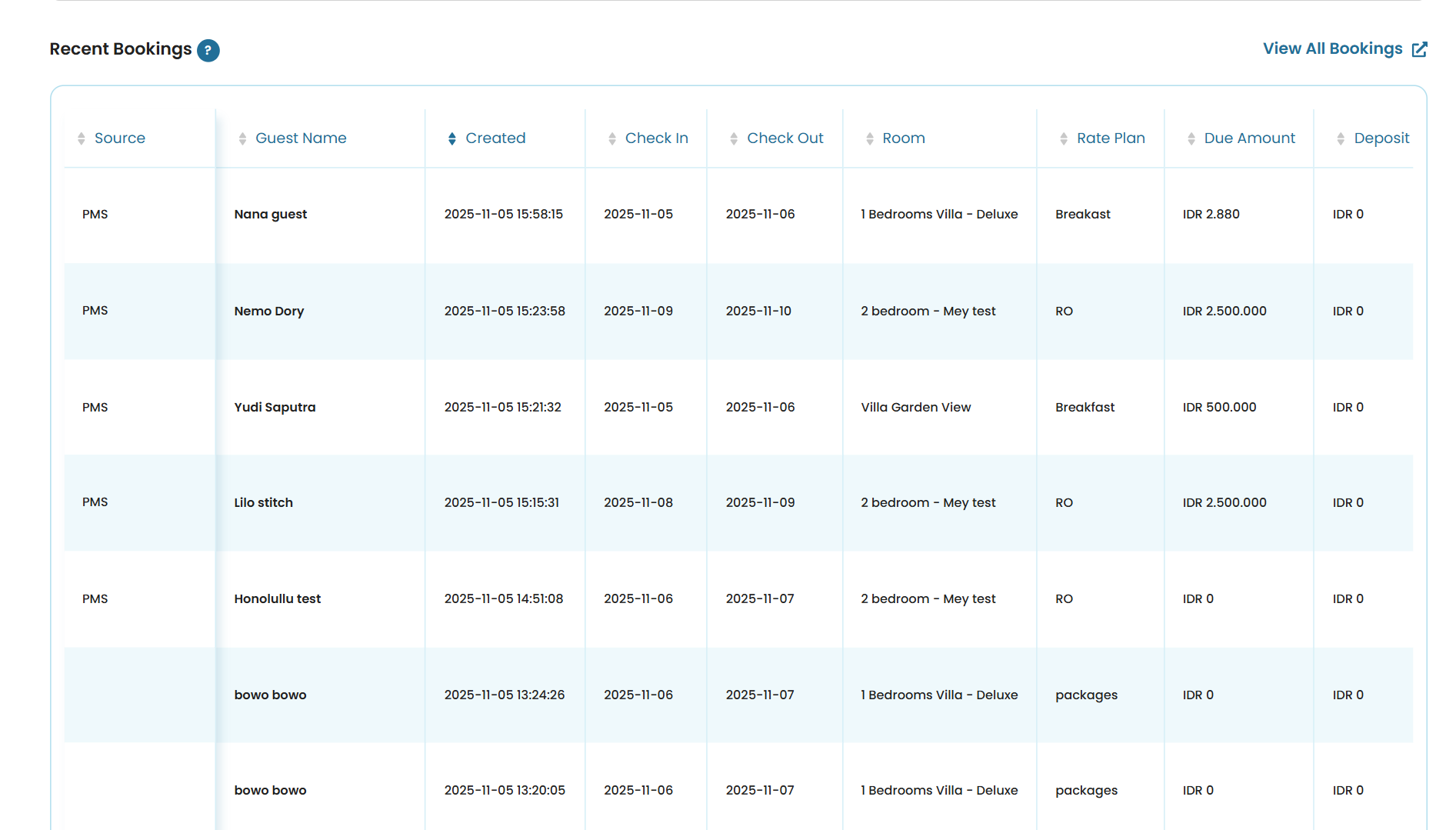 The table includes the following details:
- Booking Source
Indicates the platform or channel from which the booking was made (e.g., direct, OTA, corporate). - Guest Name
Shows the name of the guest associated with the booking. - Creation Time
The exact date and time when the booking was created in the system. - Check-In and Check-Out Dates
Displays the scheduled arrival and departure dates for the guest. - Room
Specifies the assigned room or room type for the booking. - Rate Plan
Identifies the rate plan or package selected during the booking. - Due Amount
The total balance amount due for the stay, after any payments or deposits have been applied. - Deposit Amount
Indicates the amount already paid as a deposit toward the booking This information helps you verify recent transactions and ensure booking data is accurately reflected in the system.
Booking Engine Preview
The Booking Engine Preview section shows a visual preview of your property’s Booking Engine, allowing you to review how it appears to potential guests.
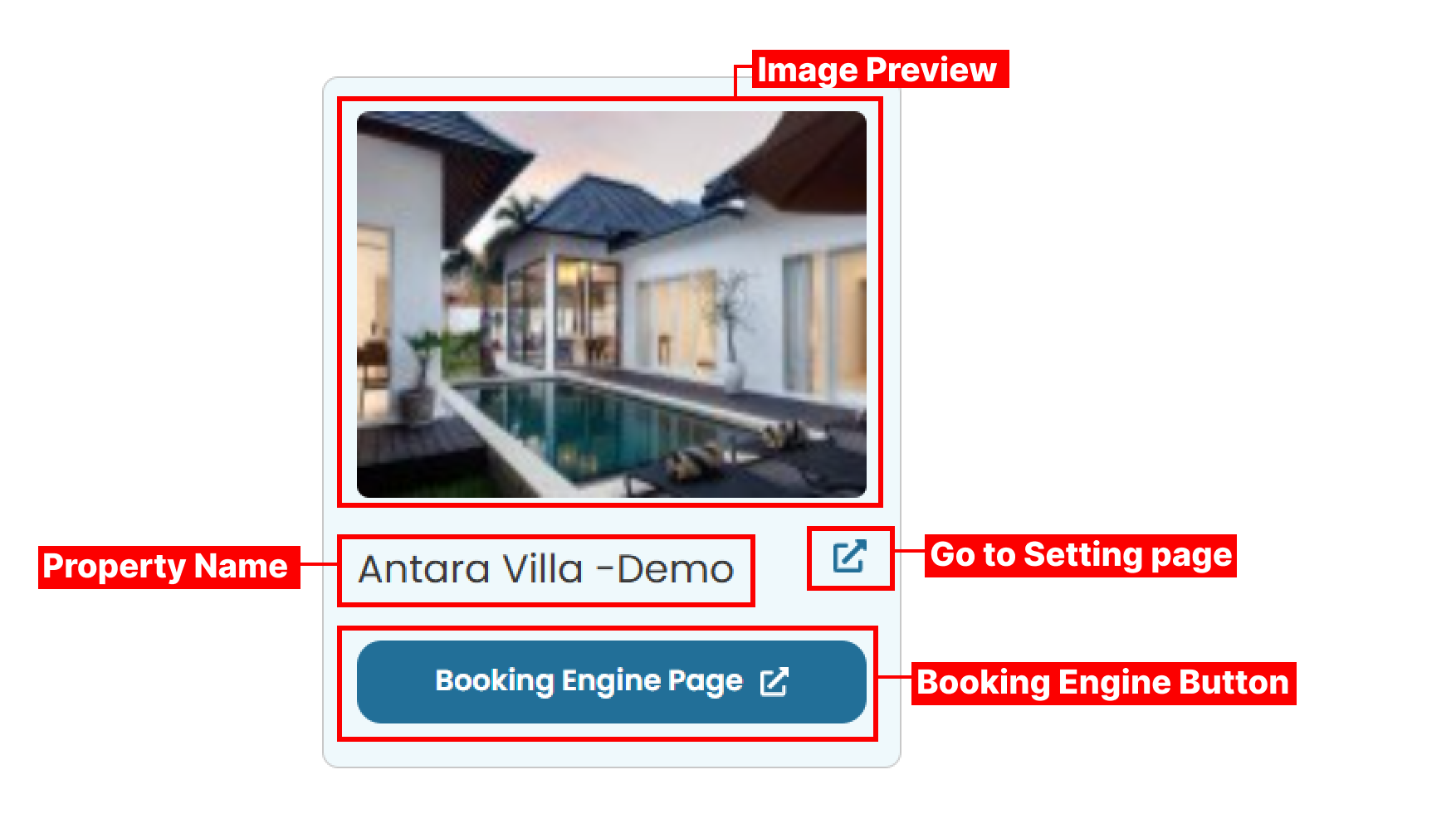
- Property Name
Shows the name of the property associated with the Booking Engine. - Preview Image
Displays a visual preview of the Booking Engine. The image can be uploaded or updated in the Setting Property. - Go to Settings Property
A shortcut button that directs you to the Setting Property page, where you can manage the Booking Engine configuration. - Booking Engine Button
Allows direct access to the Booking Engine page in a new browser tab when a valid link is set in Settings Property page. If no link has been configured, the button remains disabled, indicating that the Booking Engine link needs to be added first This feature helps ensure your Booking Engine is correctly set up and provides a quick way to verify its appearance and accessibility.
Error Status
Offers a clear list of any system errors currently detected within the platform, helping you monitor ongoing issues in real time.
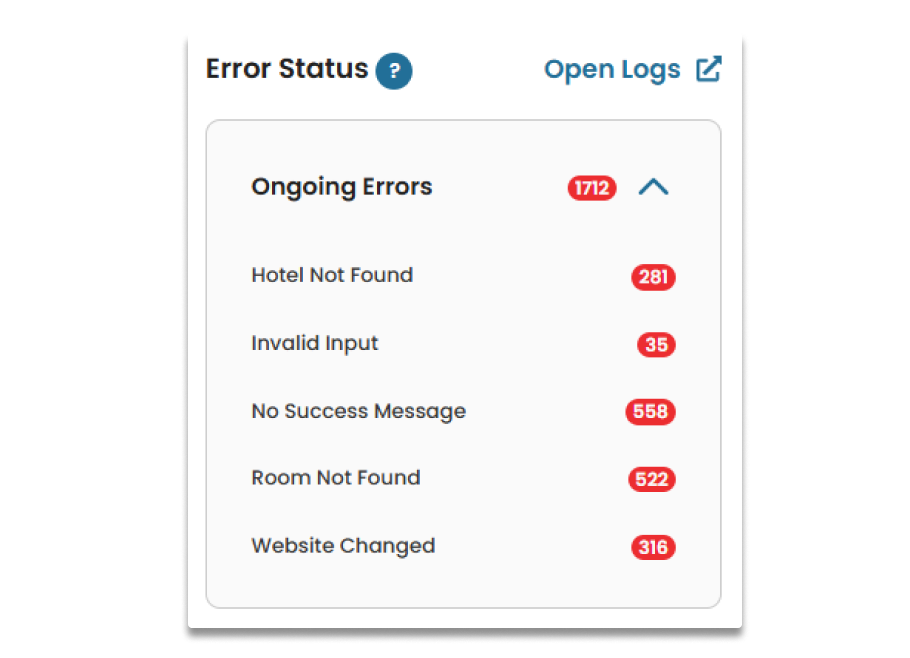 Each error entry includes the error type (for example, Room Not Found, Invalid Rate Plan, or Missing Property Data) along with the number of times the error has occurred. The list view can be expanded or collapsed using the arrow button, making it easier to focus on relevant details as needed.
This view helps you monitor ongoing issues, identify recurring errors, and ensure that system problems are addressed promptly
Each error entry includes the error type (for example, Room Not Found, Invalid Rate Plan, or Missing Property Data) along with the number of times the error has occurred. The list view can be expanded or collapsed using the arrow button, making it easier to focus on relevant details as needed.
This view helps you monitor ongoing issues, identify recurring errors, and ensure that system problems are addressed promptly
Channel Status
Provides a detailed overview of each channel’s connection and mapping status, allowing you to easily monitor integration performance across platforms.
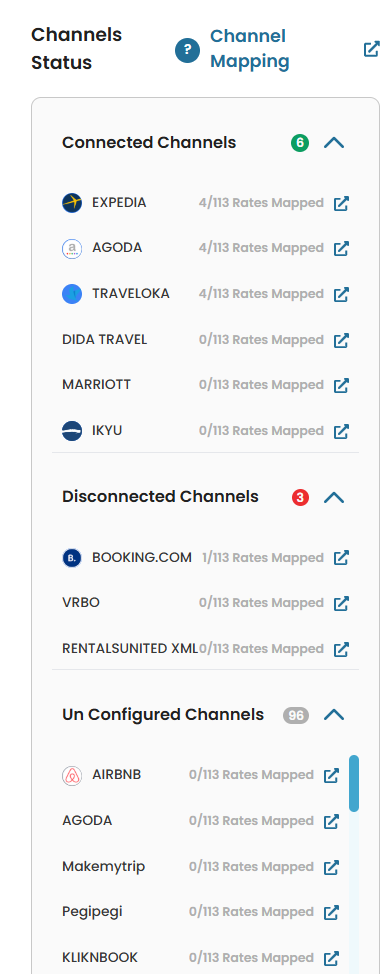 Each channel is labeled according to its current status, with the number beside each label indicating how many channels fall under that category:
- Connected : The channel is successfully linked and actively exchanging data with the system.
- Disconnected : The channel connection is temporarily inactive or interrupted.
- Unconfigured : The channel has not yet been set up or mapped in the system. You can expand or collapse the detailed list of channels by clicking the arrow button, making it easier to review connection details when needed. This view helps ensure all channels are properly configured and functioning as expected, supporting accurate synchronization across platforms.