Logs
This feature allows you to track update history for Room Type and Rate Plan on a specific date. You can monitor changes to price, allotment, stop sell, and other rate-related fields.
To view the latest version of this documentation, please refer to Logs V2.
How to Search Logs
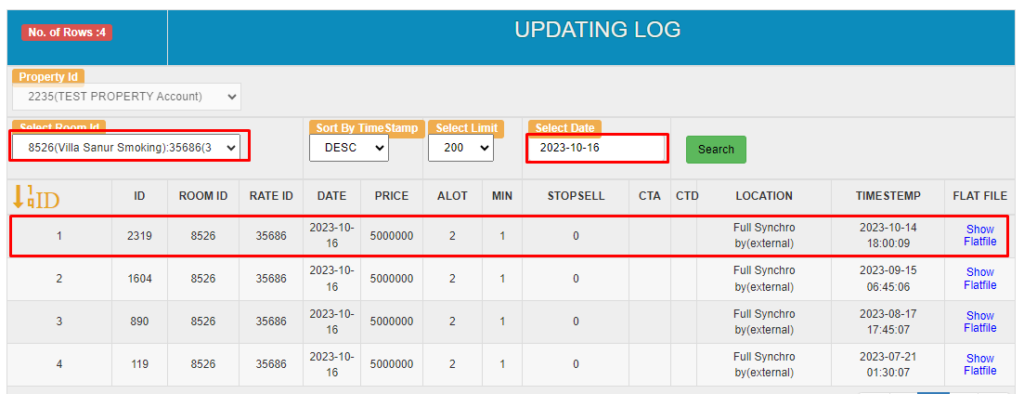
- Open the Logs section.
- Choose a Room ID (Room Type) you want to review.
- Select Sort by Timestamp (ASC or DESC).
- Choose a Search Limit (number of logs to display).
- Pick the Applied Date (the date the update affects).
- Click the Search button.
- Once searched, the system will display all the updates based on your filters, showing values like Price, ALOT (inventory), Min Nights, Stop Sell, CTA, CTD, update Location, and Timestamp.
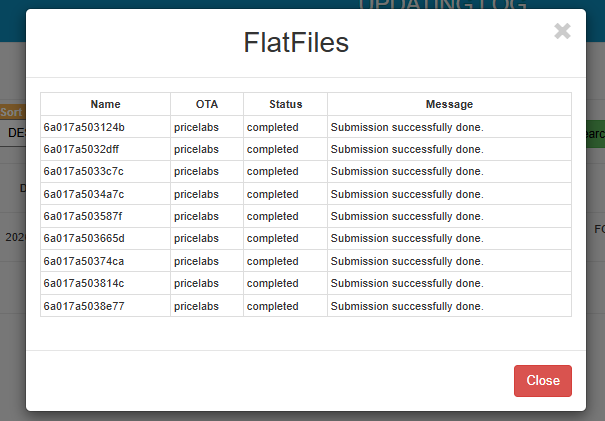
- You can access the Flatfile by clicking the Show Flatfile button. The system will display a list containing Name, OTA, Status and Messages.
Example Scenario
To check updates made for Villa Sanur Smoking room on 16 October 2023:
- Select the Room ID and Date.
- The results will show updates like:
- Price: 5,000,000
- ALOT: 2
- Min Nights: 1
- Stop Sell: 0 (means available)
- Location: Full Synchro by external
- Timestamp: 14 October 2023 (actual update applied date)
Notes:
- Applied Date is the date the change is meant to take effect.
- Timestamp is when the update was made in the system.
[!NOTE]
Troubleshooting Log Issues
No data appears after clicking Search
- Ensure you have selected both a Room ID.
- Check that the applied date is filled correctly and matches actual update dates.
- Try increasing the limit or changing the sort order.
Timestamp shows a different date than expected
- Timestamp shows the date the system received the update, not the applied date.
- Cross-check the applied date column to ensure the correct update was applied.
Wrong or missing values in log results
- Make sure the selected room and rate plan combination is valid.
- Some fields may appear empty if they were not changed during the update.
Update appears in OTA but not shown in Logs
- The update may have been pushed directly via external integration (e.g., API) and not logged.
- Check the Location column to confirm the update source (e.g., Full Synchro, manual, etc.).
Old data keeps showing in search
- Clear browser cache or refresh the page before re-running the search.
- Recheck the date filter and try with a broader limit or different sort order.