Introduction
Tiket.com is one of the OTA channels where you can manage the connection, perform room and rate plan mapping, import data from the OTA, and configure other settings through the following tabs: Information, Username, Mapping, Assignments, and Settings.
Once the integration is fully configured, all reservations from Tiketcom will appear in the Booking List, allowing you to manage them efficiently in one place.
Accessing Tiket.com Setting
Here’s how you can access Tiket.com setting:
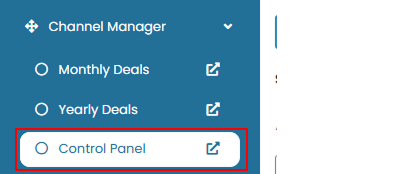
- On the Channelku, navigate to the Channel Manager menu, then click Control Panel.
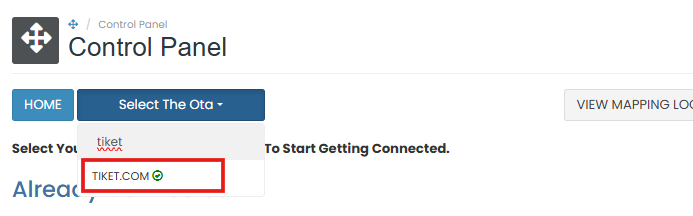
- Select Tiket.com from the channel list, or you can search from the list by type the OTA name.
Tiket.com Information
The Tiket.com Information tab provides a general guideline for connecting with Tiket.com. However, specific connection instructions are not shown within the system.
 To proceed with the integration, please contact your Channel Manager Support directly. They will assist you with all the required credentials and steps to activate the connection with Tiket.com.
[!NOTE]
Troubleshooting Tiket.com Information
No connection steps displayed
- This is expected behavior. All connection setup must be coordinated through your Channel Manager team.
Not sure how to proceed with Tiket.com integration
- Contact your Channel Manager representative and mention the channel name (Tiket.com) along with your property details.
- They will guide you through the process and provide the required Hotel ID or credentials if applicable.
Username
In the Username tab, you can enter or update the Hotel ID provided by Tiket.com.
How to Update Hotel ID
- Enter the Hotel ID assigned to your property by Tiket.com.
- Click the save button to apply the change.
- If you don’t want to save the change, click cancel.

[!NOTE]
Troubleshooting Username
Unable to save Hotel ID
Make sure the field is not left blank.
Click the save button explicitly to apply the change.
Invalid Hotel ID
Verify that the ID is correct and assigned by Tiket.com.
Contact your Tiket.com Account Manager to confirm the Hotel ID.
Mapping
The Mapping tab allows you to link each internal rate plan to the corresponding room and rate plan in Tiket.com. This enables the system to push rate, availability, and restriction data to the OTA.
How to Import Rooms from Tiket.com
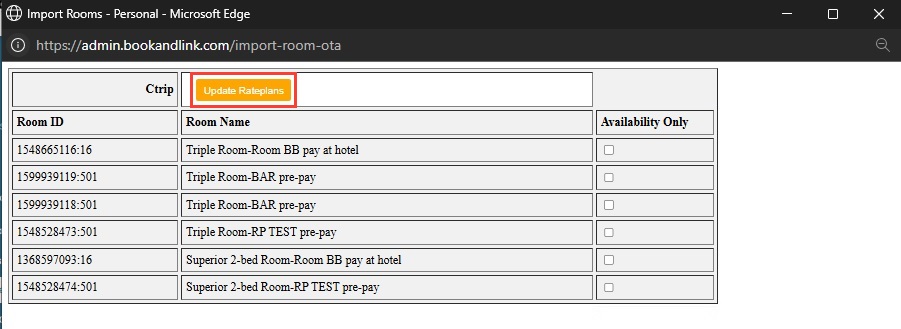
- Click the Import Rooms button at the top of the Mapping tab.
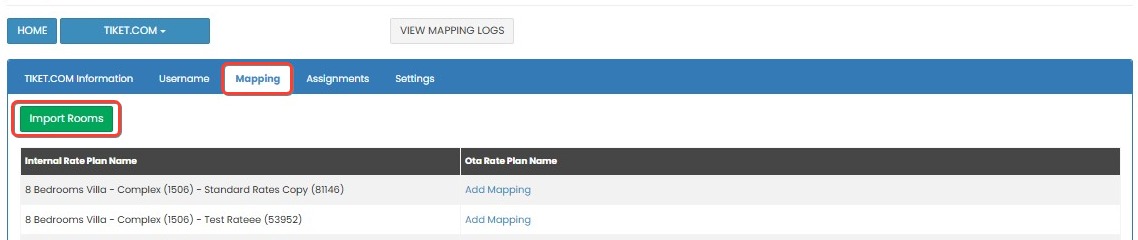
- A new page will display the room and rate plans available from Tiket.com.
- Review the list of rooms under the Room Name column.
- If you only want to push availability (without pushing pricing), tick the Availability Only checkbox.
- If you leave the checkbox unticked, the system will push both rate and availability.
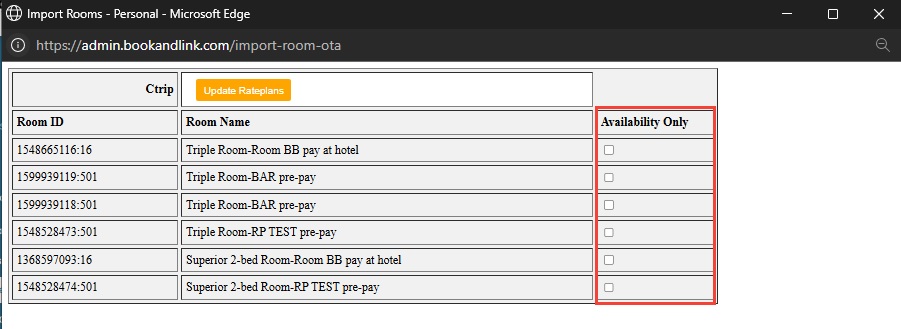
- Click Update Rateplans to complete the import. Once imported, the data will be ready for mapping.
[!NOTE]
Troubleshooting Import Rooms
Import Rooms button not working
Make sure the internet connection is stable.
Try logging out and back in, then attempt to import again.
Imported data missing rooms or rate plans
Confirm with Tiket.com that the room types and rate plans are correctly configured on their side.
Ensure the property is active and connected in Tiket.com’s system.
Availability only checkbox not working as expected
Ensure the checkbox is selected before clicking Update Rateplans.
If both rate and availability are pushed unintentionally, re-import and re-check the setting.
How to Add Mapping
The Mapping feature is used to link your internal rooms and rate plans with the corresponding rooms and rate plans from Tiket.com. To create room mapping, please follow the steps in How to Add Mapping.
Settings
The Settings tab allows you to manage how the system interacts with Tiket.com, including enabling the channel, handling updates, and configuring reservation options.
How to Configure Settings
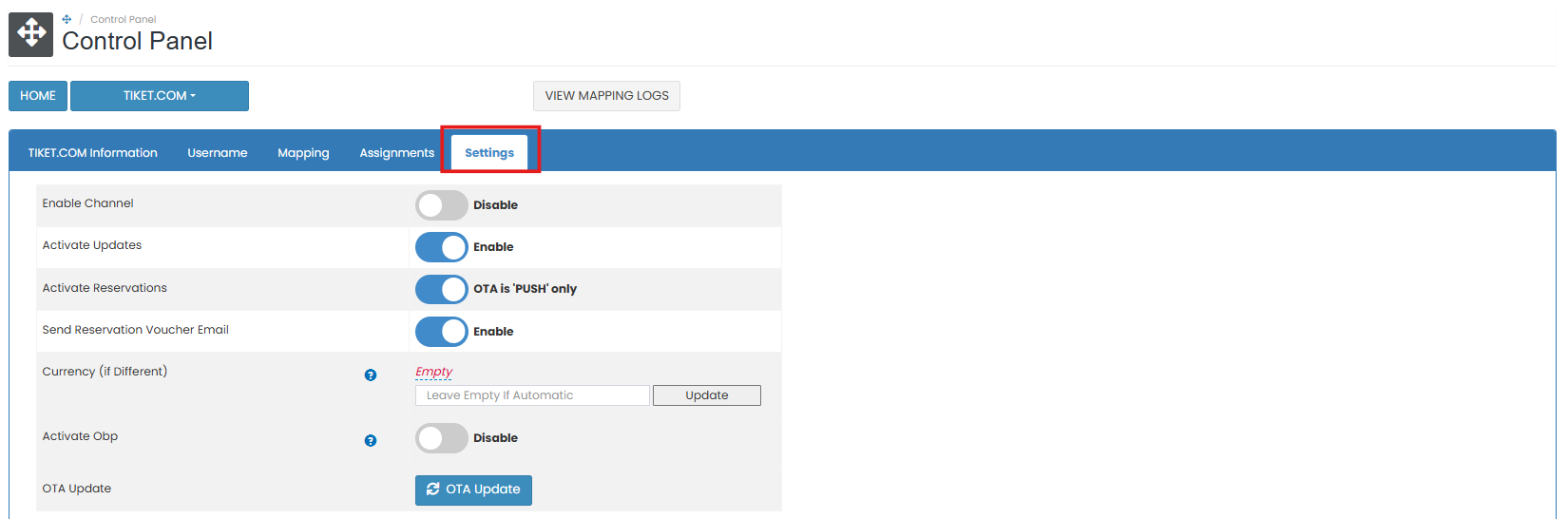
- Enable the Enable Channel option to activate the connection between your property and Tiket.com.
- Turn on Activate Updates to allow the system to push rate, availability, and restriction updates to Tiket.com.
- Enable Activate Reservations if you want to receive bookings from Tiket.com into the system.
- If you want the system to send an email voucher each time a reservation is received, enable the Send Reservation Voucher Email option.
- In the Currency (if Different) field, select the currency code if your Tiket.com currency is different from your system’s default. If left blank, the system will detect the appropriate currency automatically.

- Activate OBP: Activate OBP to reveal additional configuration fields. For detailed instructions, refer to the How to Configure OBP Setting.
- Manual OTA Update: To synchronizes rates, availability, minimum stay requirements, and "Stop Sell" statuses across all connected channels. Data can be synchronized up to the maximum date range permitted by each individual OTA (typically between 12 and 24 months in advance). Refer to How to Configure Manual OTA to see the setting steps.
How to Configure OBP Setting
If the property utilizes Occupancy-Based Pricing (OBP) on Tiket.com, you can activate the OBP option. Once you have enabled it, the specific configuration settings will become available for you to adjust.
- After enabling the switch button, click the Settings button next to OBP.

- You will be taken to the OBP configuration screen where you can define detailed pricing adjustments based on occupancy.
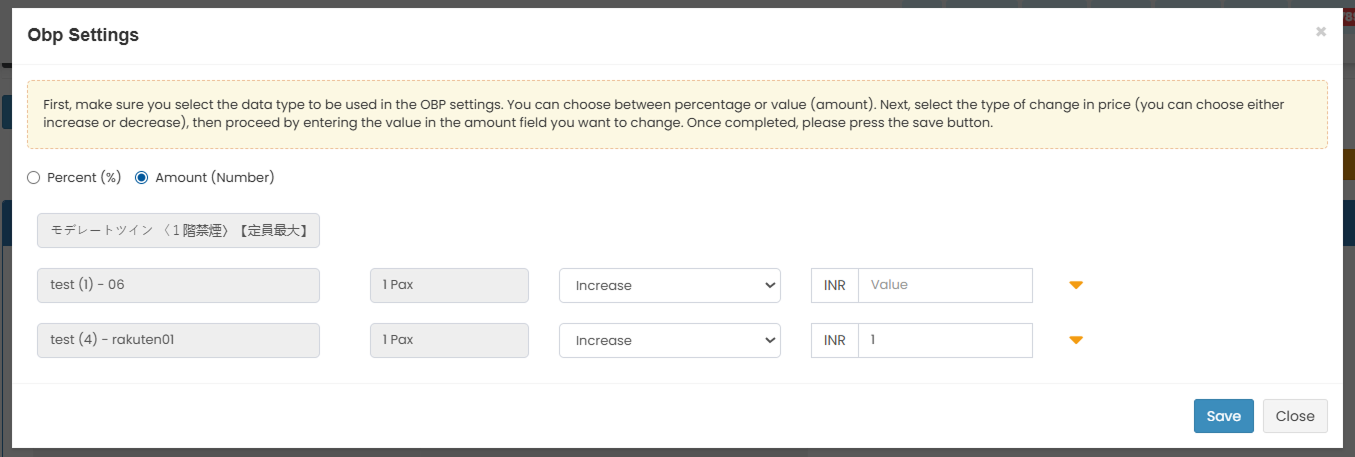
- Choose the adjustment type: either Percent (%) or Amount (number).
- For each bedroom type listed, you will see the Default Pax column, the Increase/Decrease selector, and a Value field.
- You can click the down arrow next to each bedroom to expand a list of pax levels (from 1 up to 9 pax).
- For each pax level, enter the value adjustment to be applied (e.g., increase by 10%, decrease by 50, etc.).
- After filling in the necessary values, click Save to apply the OBP settings.
How to Configure Manual OTA
Use this feature to manually push updates to Tiket.com .
- Scroll down to the OTA Update section.
- Click the OTA Update button to open the pop up window.

- Complete the required fields:
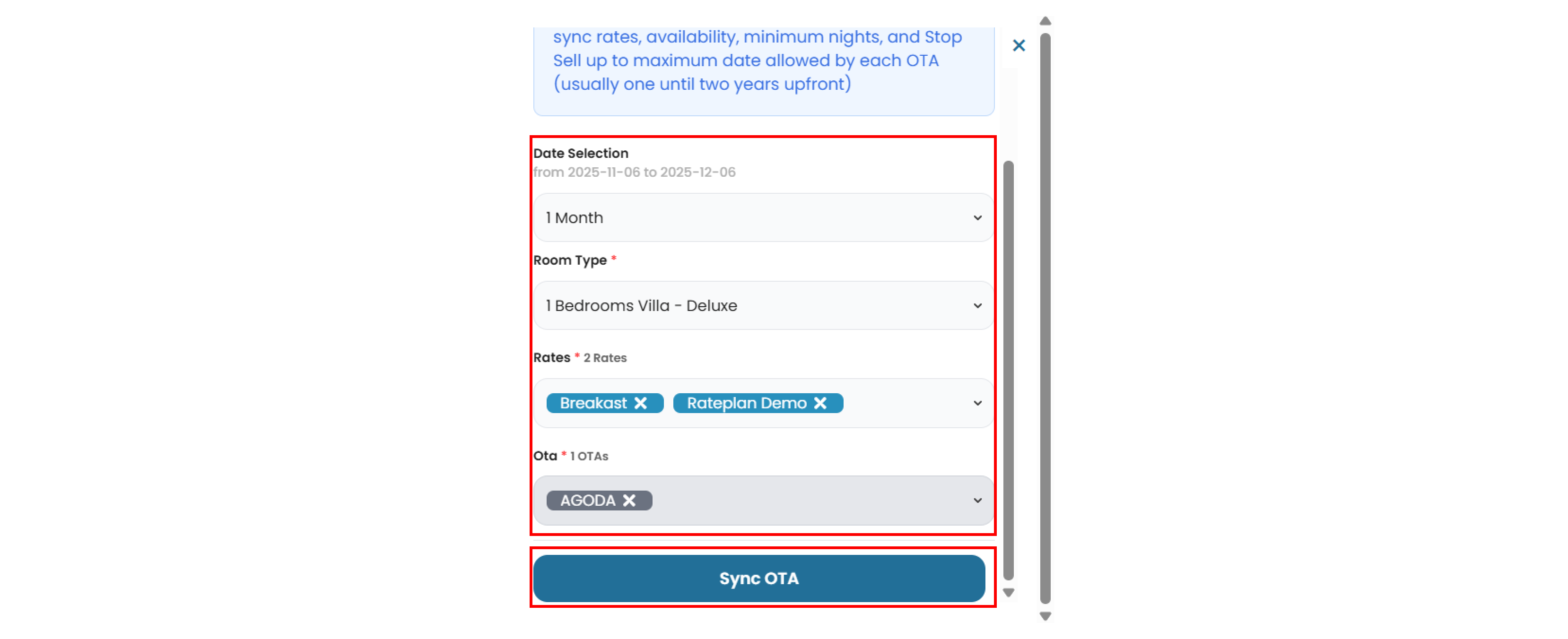
- Date Selection : Choose the duration of the OTA update (e.g 1 month, 3 months, etc)
- Room Type : Select the room type from the list.
- Rate : Choose one or more rate plans. You can also select all rate plan if needed.
- Click Sync OTA to save and apply the changes.
[!NOTE]
Troubleshooting Settings and Update History
Enable Channel or Activate Updates not working
Make sure the checkbox is selected and click the Update button afterward.
If the changes do not apply, refresh the page and try again.
Not receiving reservations from Tiket.com
Confirm that Activate Reservations is turned on.
Recheck the mapping and assignments to ensure correct linkage.
Reservation voucher email not received
Ensure Send Reservation Voucher Email is enabled.
Check your spam or junk folder, or verify your email settings.
Currency field remains blank after selection
Click once to select the correct currency code.
If left blank, the system will detect the correct currency automatically based on the reservation.
OBP not working after activation
Make sure Activate OBP is enabled.
Contact Tiket.com to ensure OBP is supported and active on their side.
OTA Update not triggering changes
Ensure a room is selected before clicking the button.
Wait a few moments and refresh the page to check if the update was recorded.
No updates showing in Last 10 Updates
Wait a few minutes and refresh the page.
If updates are still not logged, check the mapping and ensure OTA Update was triggered.
Update failed status shown
Hover over the failed update to see the error reason.
Make sure the mapped rate plan is active on Tiket.com’s side.
Retry the OTA Update manually if needed.