Payout Terms and Conditions
Overview
Payout is the process of transferring your accumulated transaction funds to your registered bank account. PayKu provides a different versions of the payout system between Payku V1 and V2, each with a different withdrawal method. You can access this feature by navigating to Payment Processing > Transactions.
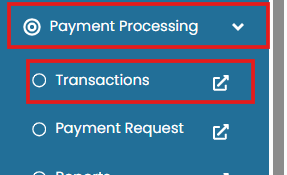
Before performing any withdrawal, ensure that your bank account details have been registered and verified by the PayKu Team. Withdrawals cannot be processed without a registered bank account.
Payout Dashboard
The Transactions page displays your payout dashboard based on your PayKu subscription history. If you previously used Payout V1 and later migrated to Payout V2, both payout dashboards may appear on the same page as long as your V1 balance has not been fully withdrawn.

- Payout V1 allows users to submit withdrawal requests manually at any time based on the available balance.
- Payout V2 processes withdrawals automatically every Wednesday without requiring manual requests.
The Payout V1 dashboard is displayed only while there is remaining V1 balance. Once the balance has been fully withdrawn, the dashboard will be removed automatically.
Payout V1
Available Balance
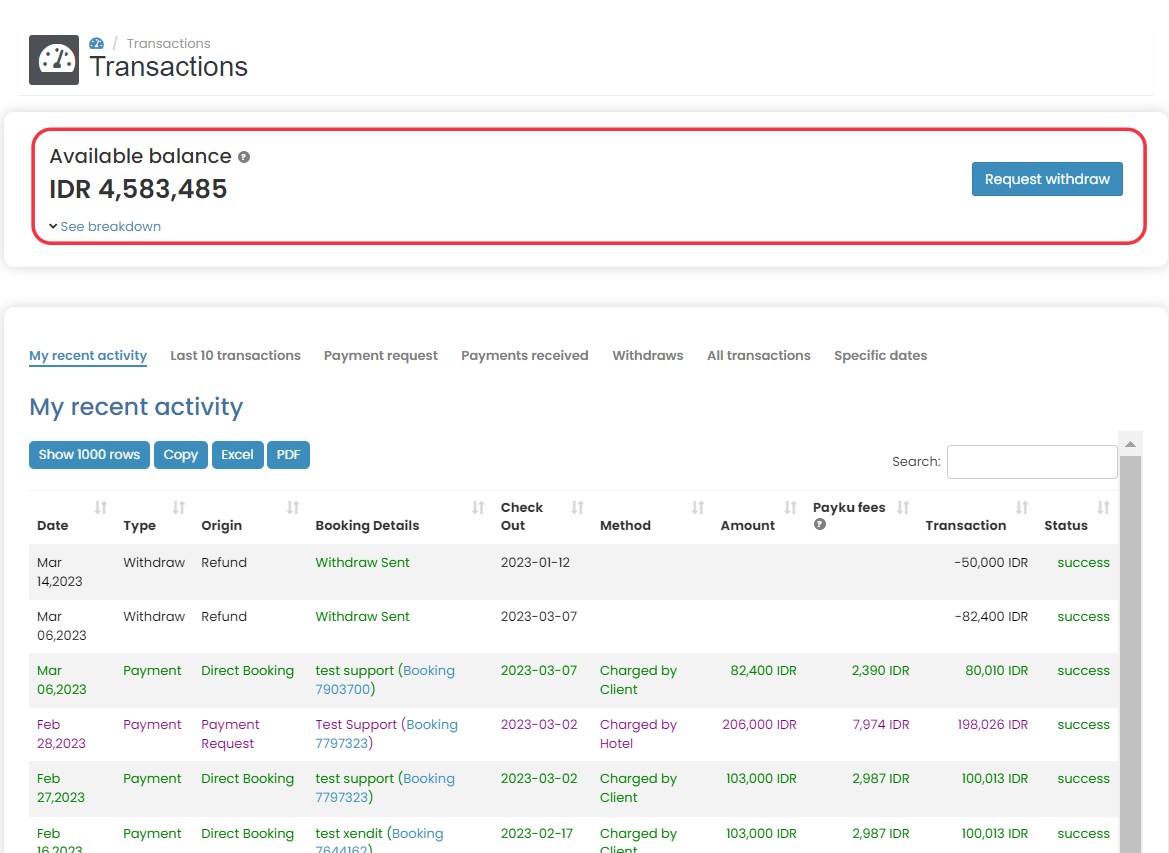
This section displays an overview of your current balance, including:
- Available Balance The amount that is currently eligible for withdrawal.
- Balance Details
 Click See Breakdown to view a detailed balance summary:
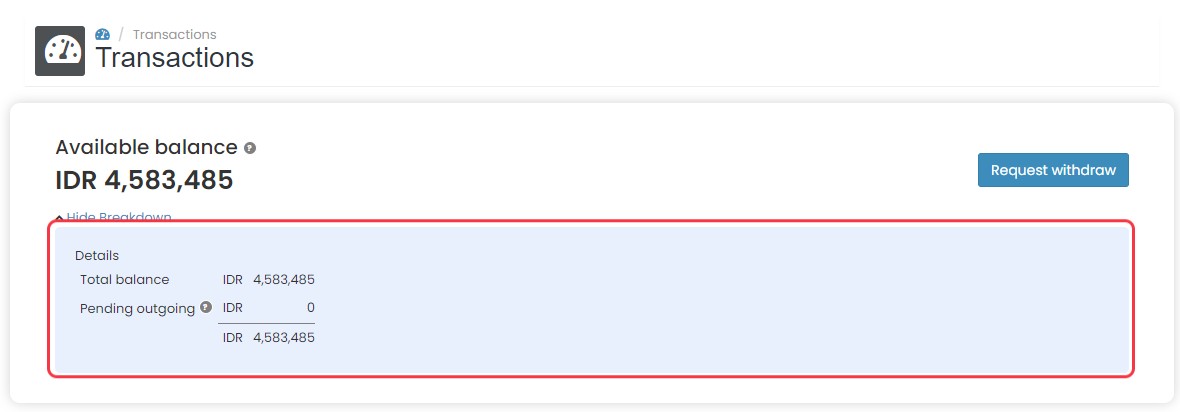
- Total Balance: The total amount of funds recorded in your account.
- Pending Outgoing: Funds from VCC (Virtual Credit Card) transactions that have not yet been settled. These funds will become available after the guest has checked out.
How to Request Withdrawal
To submit a withdrawal request:
- Click on the Request Withdraw button.
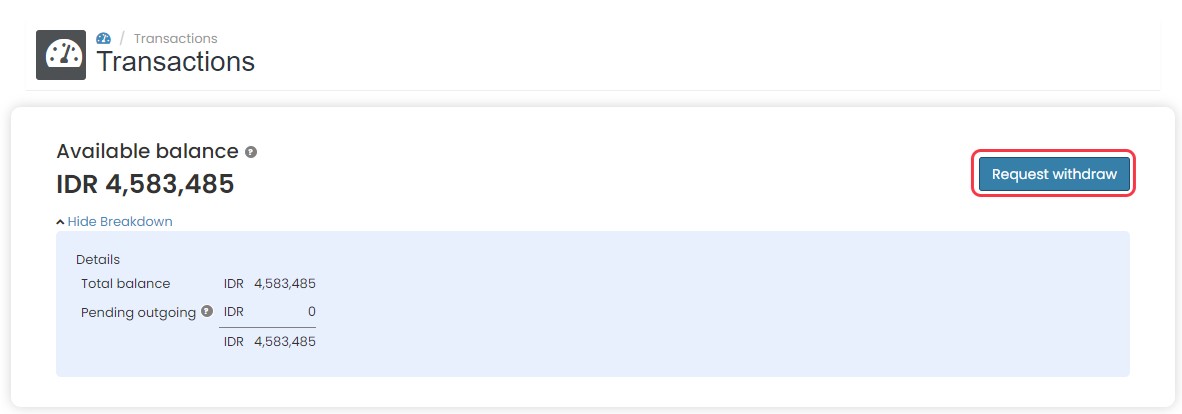
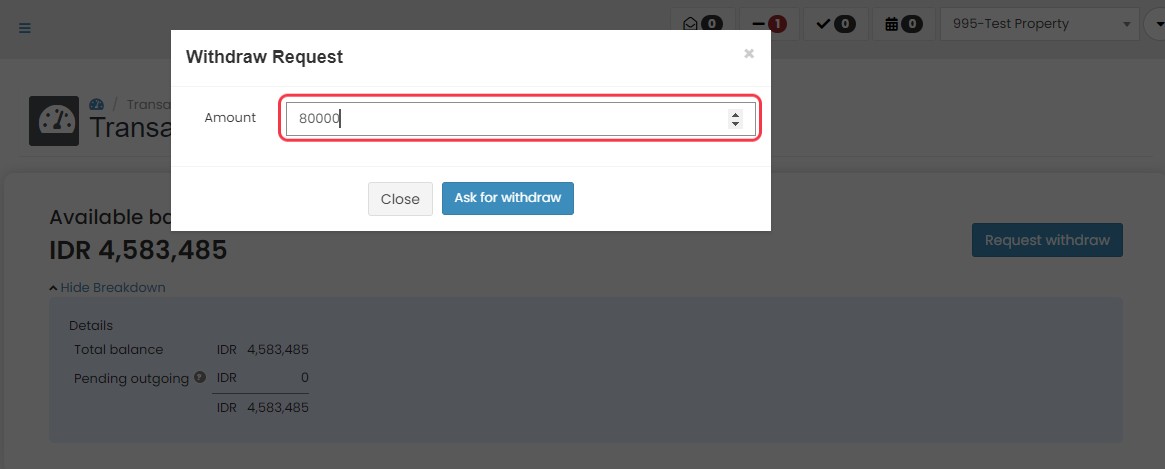
- A pop up will appear. Input the amount that you want to withdraw.
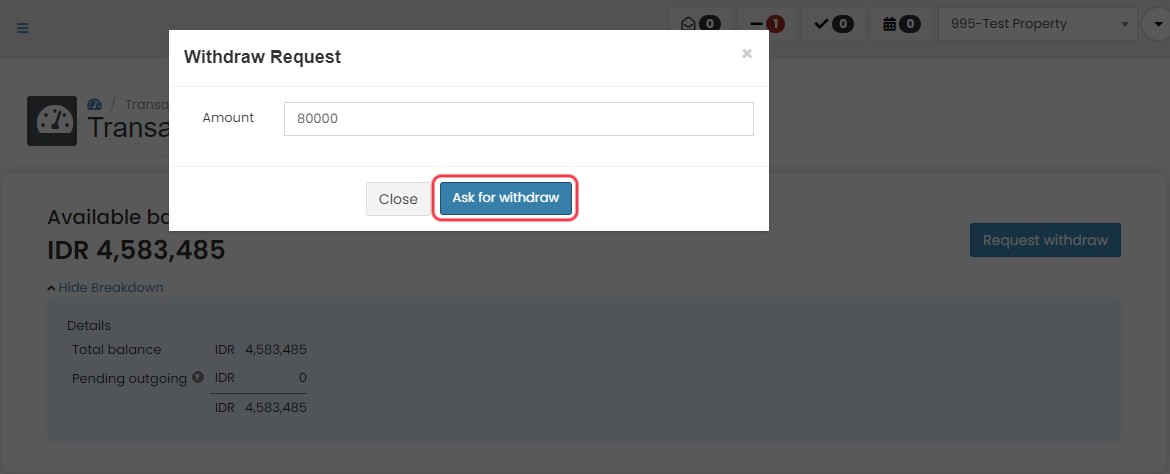
- Click on Ask for withdraw button to submit the request.
- After submission:
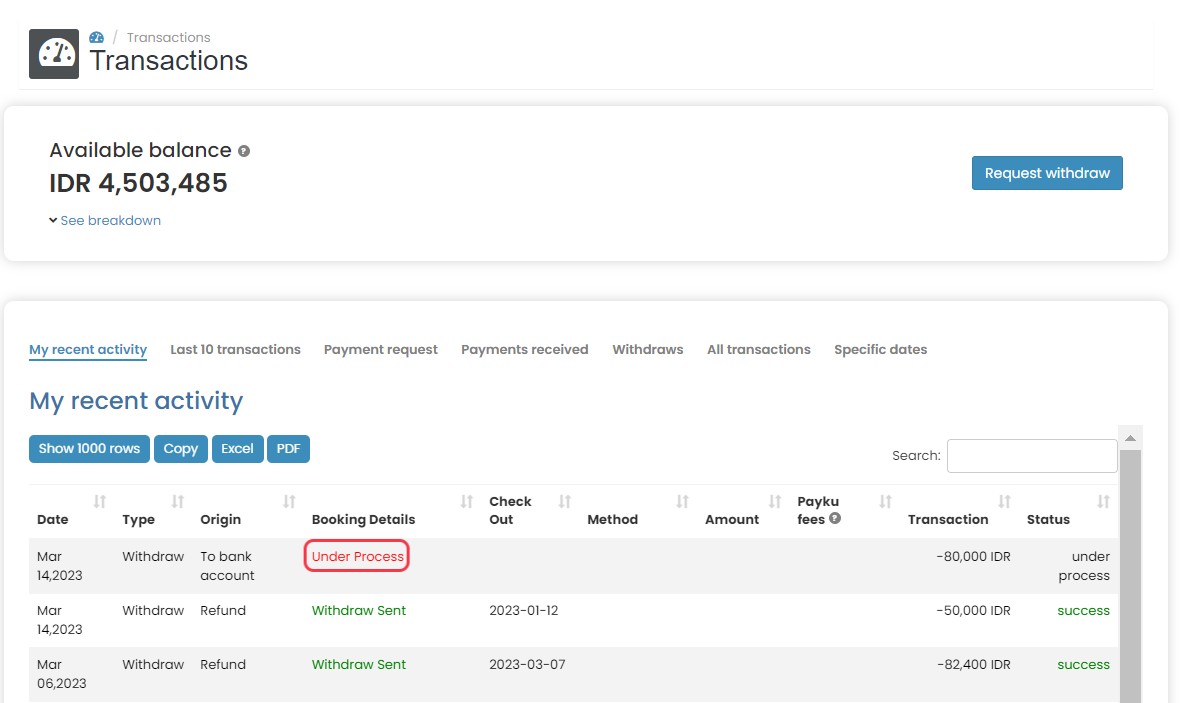
- The withdrawal request will appear at the top of the transaction list with the status Under Process.
- Withdrawn funds will be transferred to your registered bank account within 3 business days.
Payout V2
Balance Amount
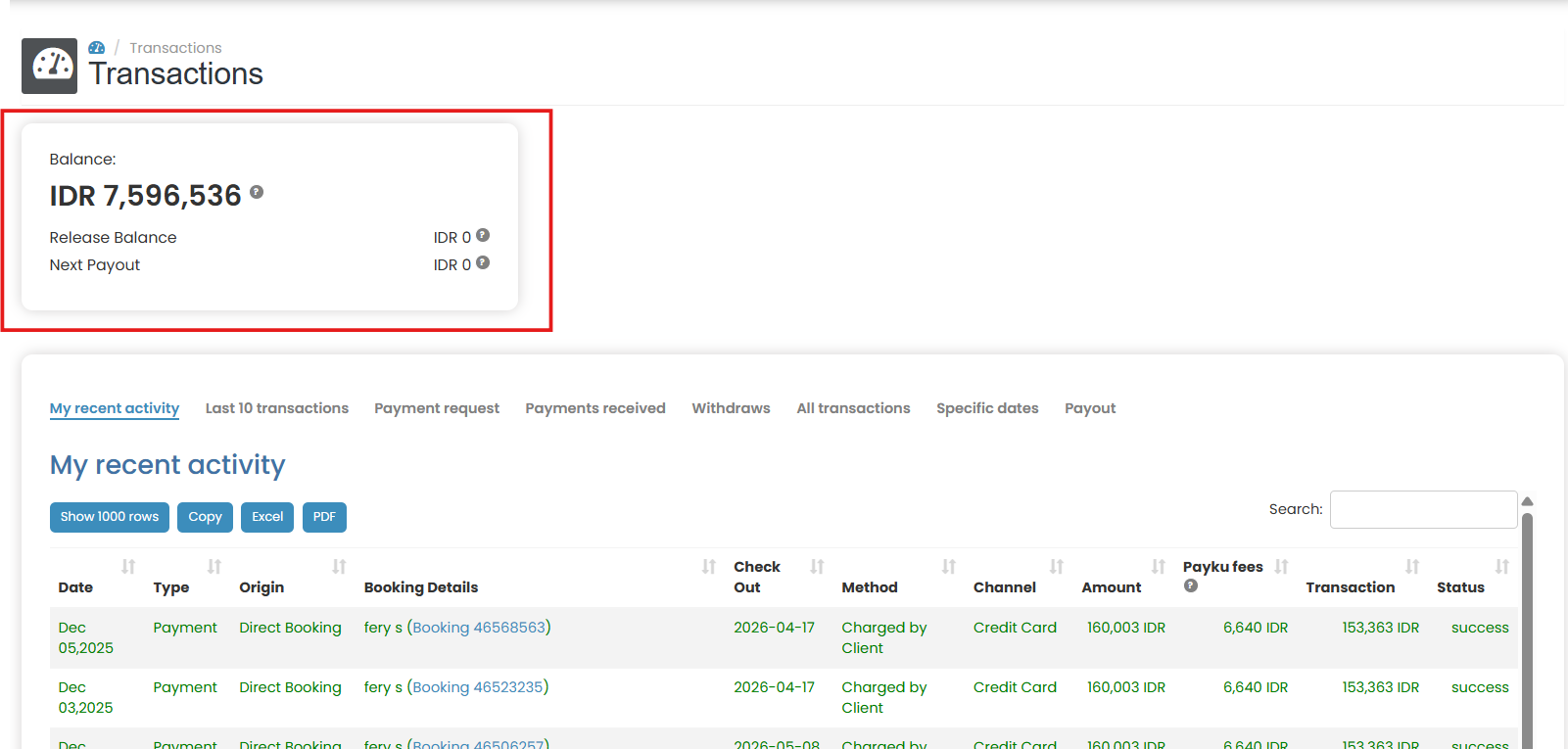
At the top of the Transaction page, you will find the Balance Amount section, which provides the following information:
- Balance Amount
The displayed balance includes all transactions, including pending amounts. Any funds scheduled for release from the previous week will be deducted from the total balance every Friday. - Balance Details
- Release Balance: Funds accumulated during the current week. These funds will be transferred in the next payout cycle.
- Next Payout: Payment scheduled for this week.
How to Track Your Payout
Since withdrawals are processed automatically, you can monitor them through the Payout section in the transaction list.
- Navigate to the Payout section in the transaction list.
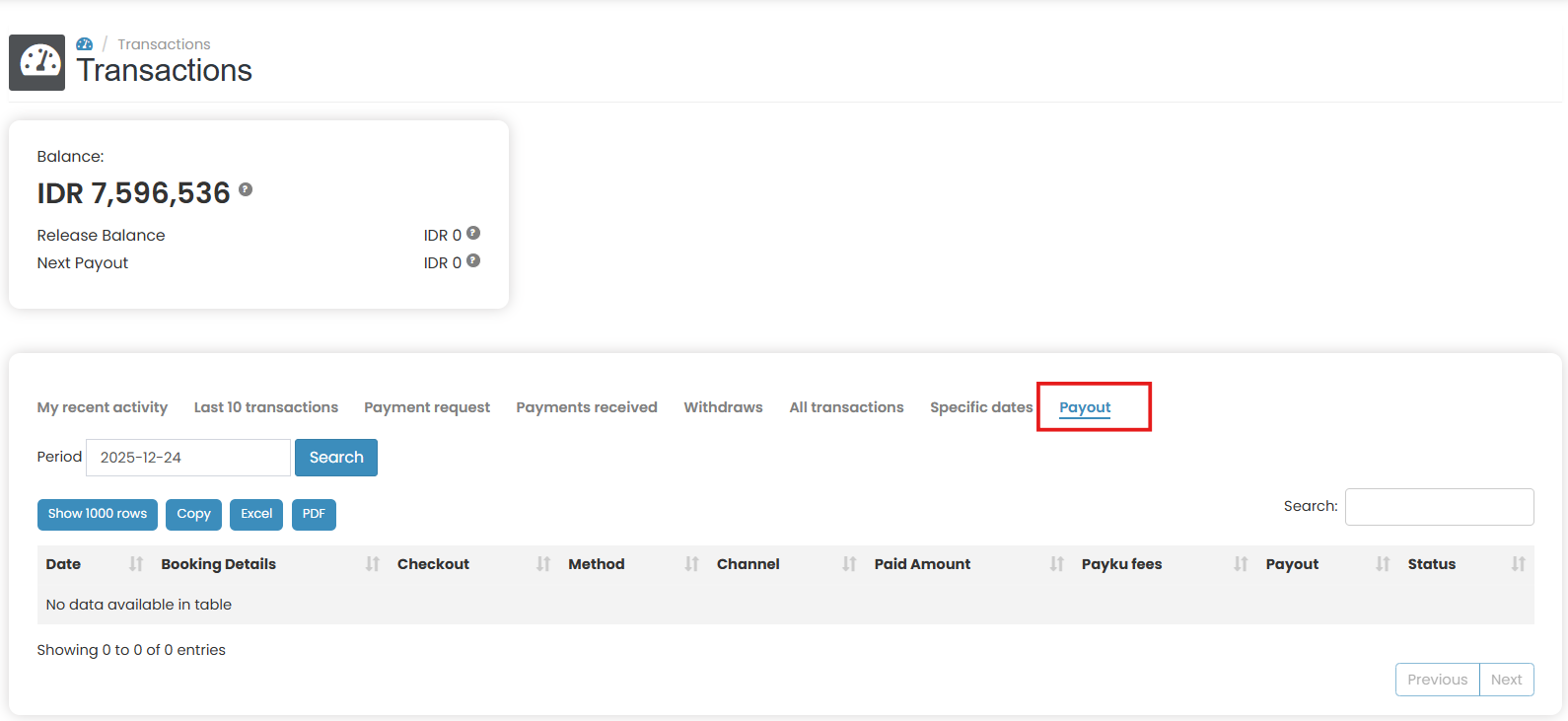
- Click on a payout period. Select a date that falls on Wednesday to view the related transaction history.

- The payout transactions will be displayed in the table.
Within the payout transaction list, you can:
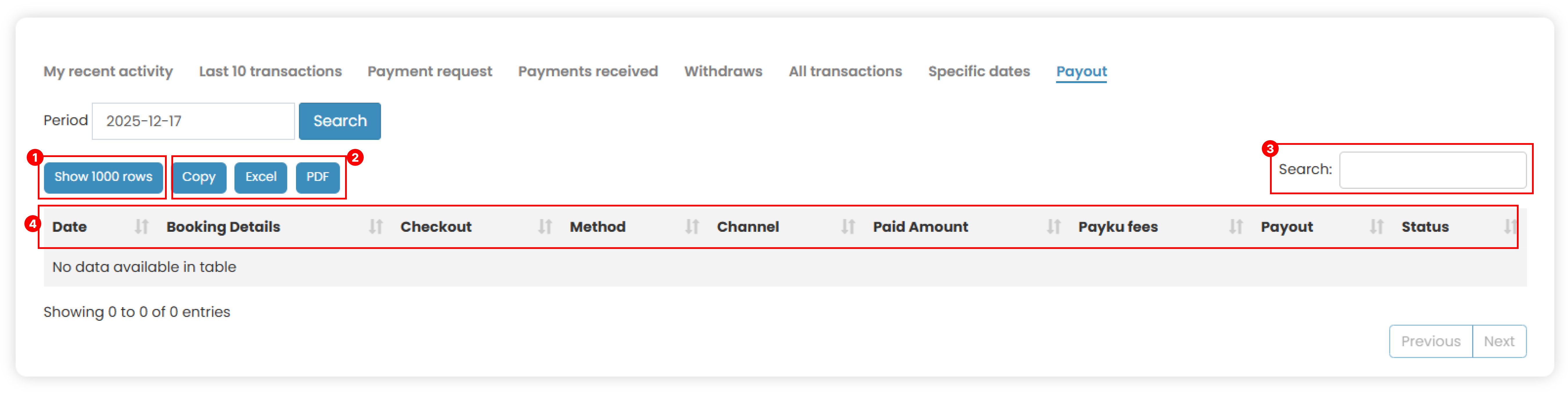
- Show Rows
Adjust the number of rows displayed in the table.(e.g., 10, 25, 50, or all). - Export Data
- Copy: Copy the data in
.txtformat to your clipboard. - Excel: Download the data in
.xlsxformat. - PDF: Download the data in
.pdfformat.
- Copy: Copy the data in
- Search
Find specific transactions by entering keywords in the search bar. - Sort Data
Sort the table by clicking on any column header
How to Process Refund
You can also process refunds for payment processing For detailed instructions, refer to How to Process Refund on Payment Processing documentation.