How To Set “Booking Policy”
Overview
The Booking Policy feature allows you to define your property's general booking terms, conditions, and additional charges. These settings are applied to reservations using your default (BAR) rates and are displayed on guest invoices.
How to Configure Booking Policy
- Navigate to Settings > Booking Policy.
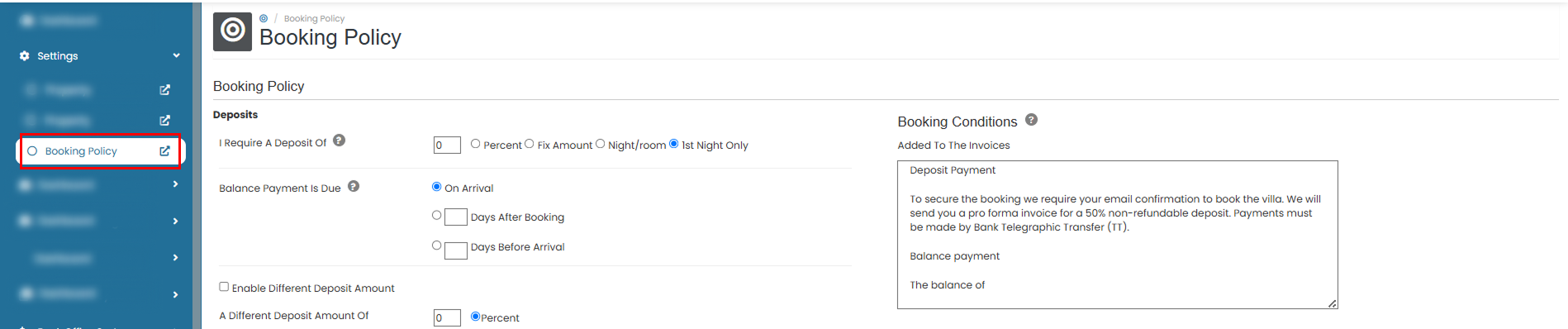
- You will be directed to the Booking Policy page. Complete the required sections:
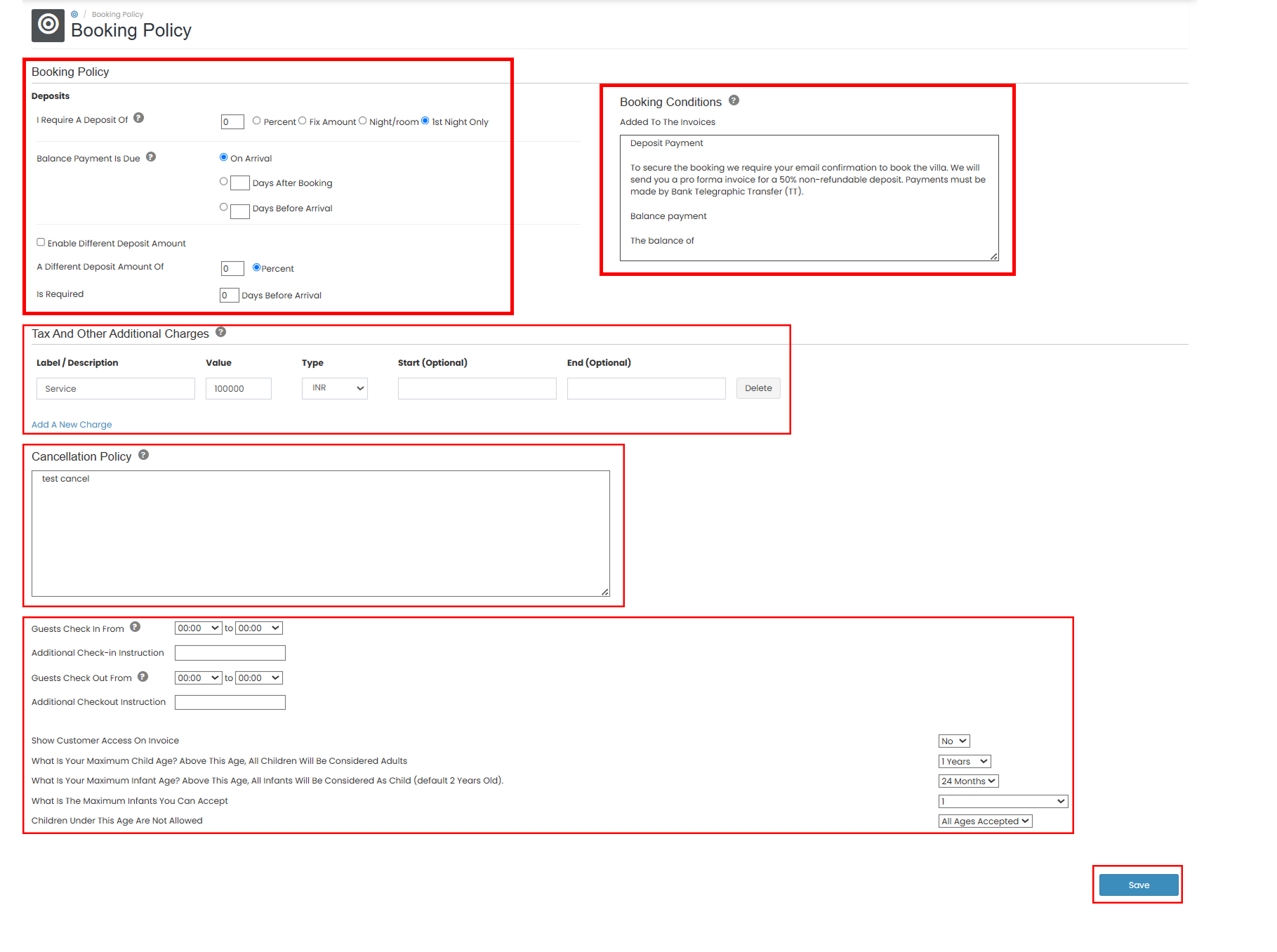
- In the Booking Policy section, enter your property's general booking policy.
- In the Booking Conditions section, enter any additional booking conditions that should appear on guest invoices.
- In the General Tax and Other Additional Charges section, configure any taxes or additional fees, such as cleaning fees or service charges.
- In the Cancellation Policies section, configure your property's cancellation policy.
- In the Additional Information section, specify details such as the Check-in Time, Check-out Time, additional guest instructions, and other property settings such as Show Customer Access on Invoice, Maximum Child Age, Maximum Infant Age, and Maximum Number of Infants Accepted.
- After reviewing the information, click Save to apply the changes.
Troubleshooting Booking Policy
Changes are not saved
- Ensure all required fields have been completed.
- Click Save before leaving the page.
- Refresh the page to verify that the changes have been applied.
Booking policy is not displayed on the invoice
- Verify that the reservation uses the default booking policy.
- If the reservation uses a specific rate plan, check whether a different booking policy has been configured for that rate plan.
Booking conditions are missing from the invoice
- Confirm that the booking conditions have been entered and saved successfully.
- Generate a new invoice after updating the booking policy.
Taxes or additional charges are not shown
- Verify that the taxes or additional charges have been configured correctly.
- Save the changes and regenerate the invoice if necessary.