How To Send Payment Request
Overview
The Payment Request feature allows you to generate secure payment links and send them directly to guests. Guests can complete their payment online using the available payment methods, including credit cards with 3D Secure (3DS) verification.
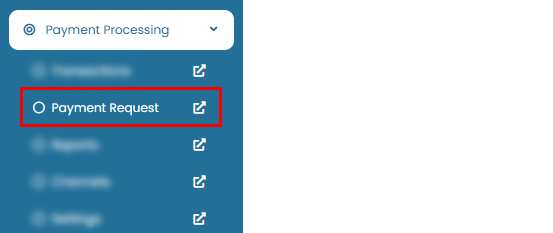
You can access this feature by navigating to Payment Processing > Payment Request.
Activate Payku IDR
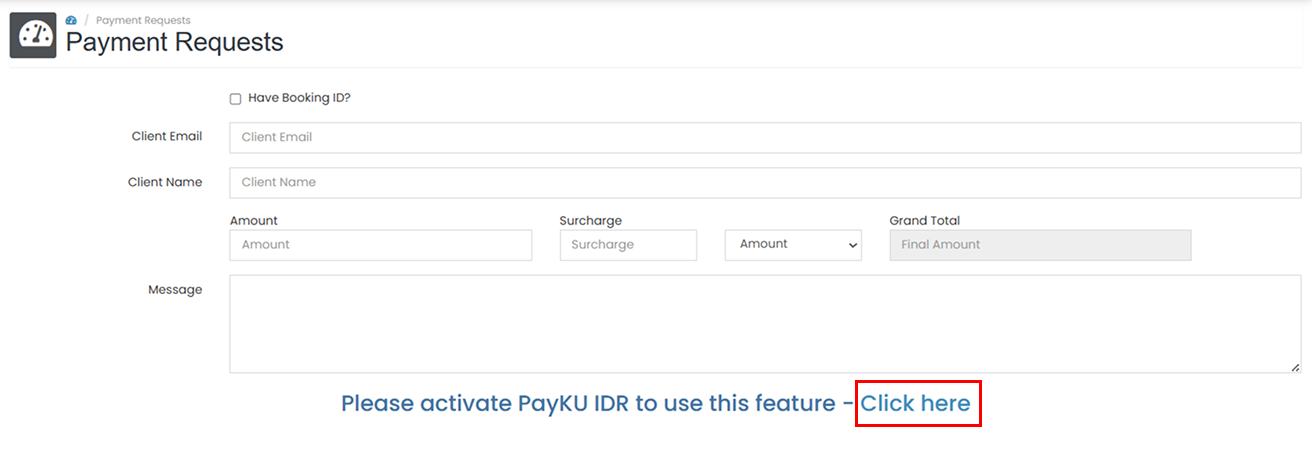
Before sending a payment request, make sure PayKu IDR has been activated for your property. If it is not yet active, click the Click here button.
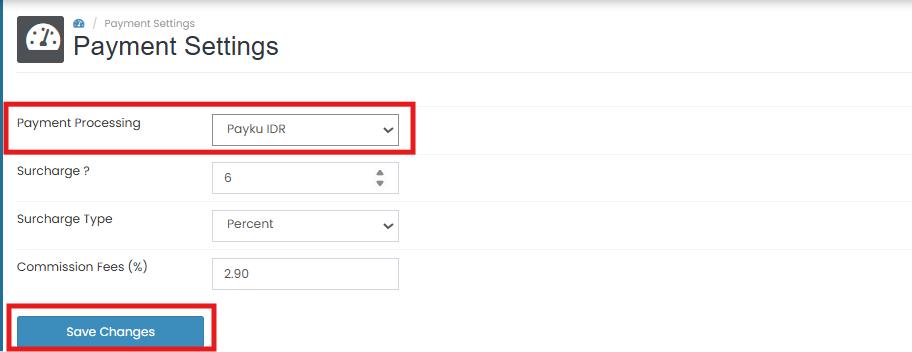
You will be redirected to the Payment Settings page. Under the Payment Processing section, select PayKu IDR, then click Save Changes.
 Once the changes have been saved successfully, return to the Payment Request page to continue creating the payment request.
PayKu IDR option is not available
- Verify that your property is eligible to use PayKu IDR.
- Refresh the page and check the Payment Processing section again.
- Contact the PayKu team if the option is still unavailable.
Changes are not saved
- Ensure you have selected PayKu IDR before clicking Save Changes.
- Wait for the confirmation message indicating the settings have been updated successfully.
- Refresh the page and verify that the selected payment processor is still displayed.
Payment Request page still shows activation message
- Return to the Payment Request page after saving the settings.
- Refresh the page to load the latest payment configuration.
- If the issue persists, contact the PayKu support team.
How to Send Payment Request
On the Payment Request page, you will find a request form. You can either populate the form automatically using a Booking ID or enter the information manually..
Using Booking ID
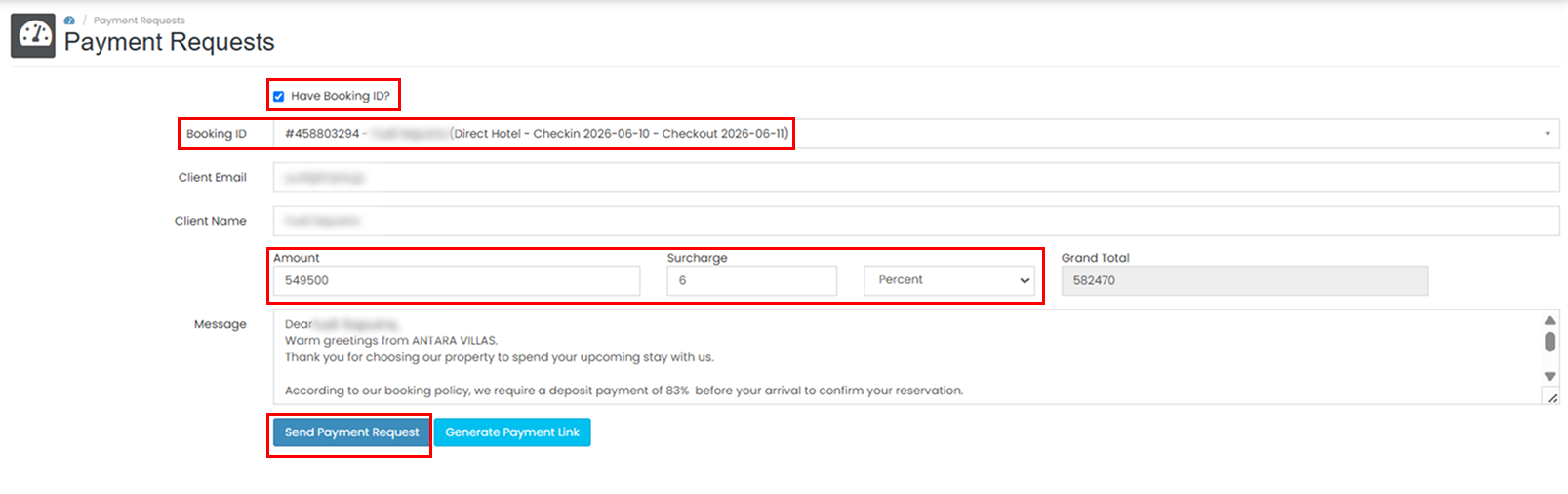
- Select the Have Booking ID? checkbox.
- The Booking ID field will appear. Select the reservation.
- The remaining fields will be populated automatically based on the selected reservation.
- You can still modify the payment amount and choose a surcharge type if needed. PayKu provides surcharge options that can be used to cover transaction fees.
- Click Send Payment to send the payment request to the guest's email address.
Manual Entry
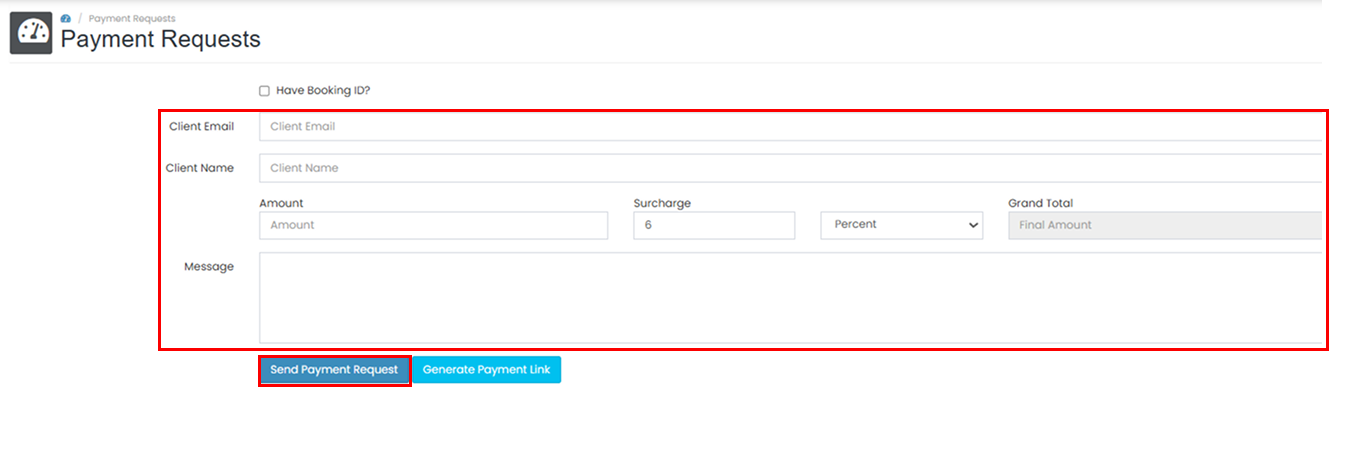
- Complete all required fields in the form.
- Review the information to ensure it is correct.
- Click Send Payment to send the payment request to the guest's email address.
Unable to find a reservation by Booking ID
- Verify that the Booking ID is correct.
- Ensure the reservation has been created successfully.
- Try searching again after refreshing the page.
Guest information is not populated automatically
- Confirm that the selected reservation contains complete guest information.
- Re-select the Booking ID and wait for the form to refresh.
- If the issue persists, enter the information manually.
Unable to send the payment request
- Ensure all required fields have been completed.
- Verify that the guest email address is valid.
- Check that the payment amount is greater than zero.
Guest did not receive the payment request email
- Ask the guest to check their Spam or Junk folder.
- Verify that the email address entered is correct.
- Resend the payment request if necessary.
How to Generate Payment Link
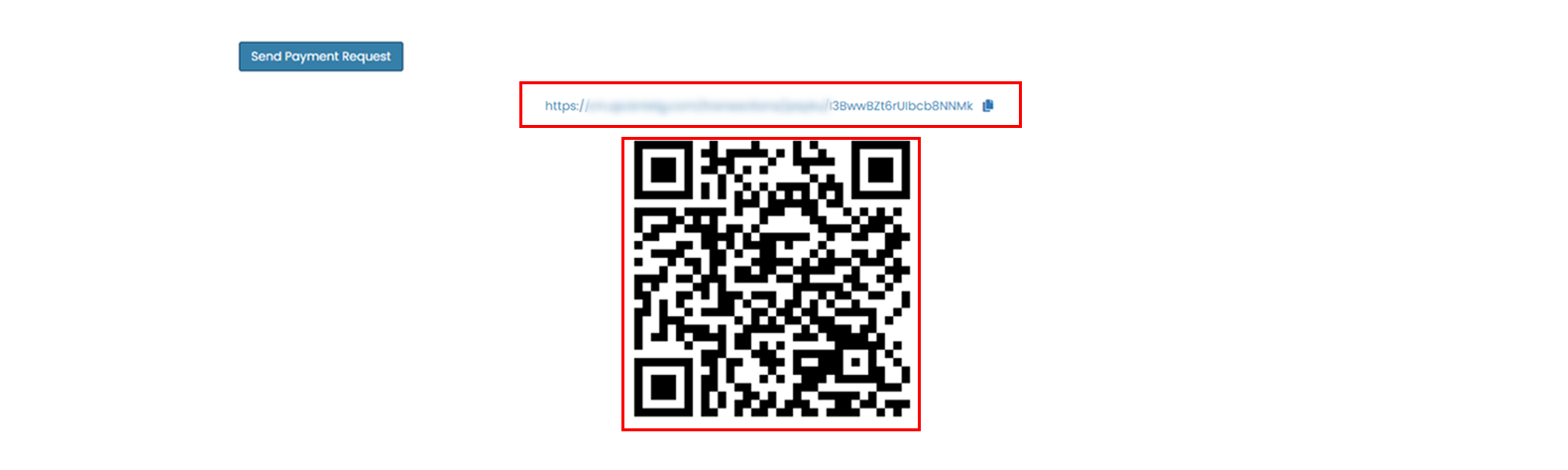
After creating a payment request, you can generate a direct payment link by clicking Generate Payment Link.
 The generated link will be displayed below the form. You can copy and share it with guests through email or messaging applications such as WhatsApp, Line, Viber, iMessage, and other supported platforms.
Generate Payment Link button is unavailable
- Complete all required fields before generating the payment link.
- Verify that PayKu IDR has been activated successfully.
- Refresh the page and try again.
Payment link is not generated
- Retry the process after a few moments.
- Verify that the payment request information is valid.
- Contact the PayKu support team if the issue persists.
Guest cannot open the payment link
- Ensure the entire payment link has been copied correctly.
- Ask the guest to open the link using a supported browser.
- Generate a new payment link and resend it if necessary.
How to Track Payment Status
After a payment request is sent, the transaction will be recorded in the Transactions page. You can use this page to monitor the payment status and verify whether the guest has completed the payment.
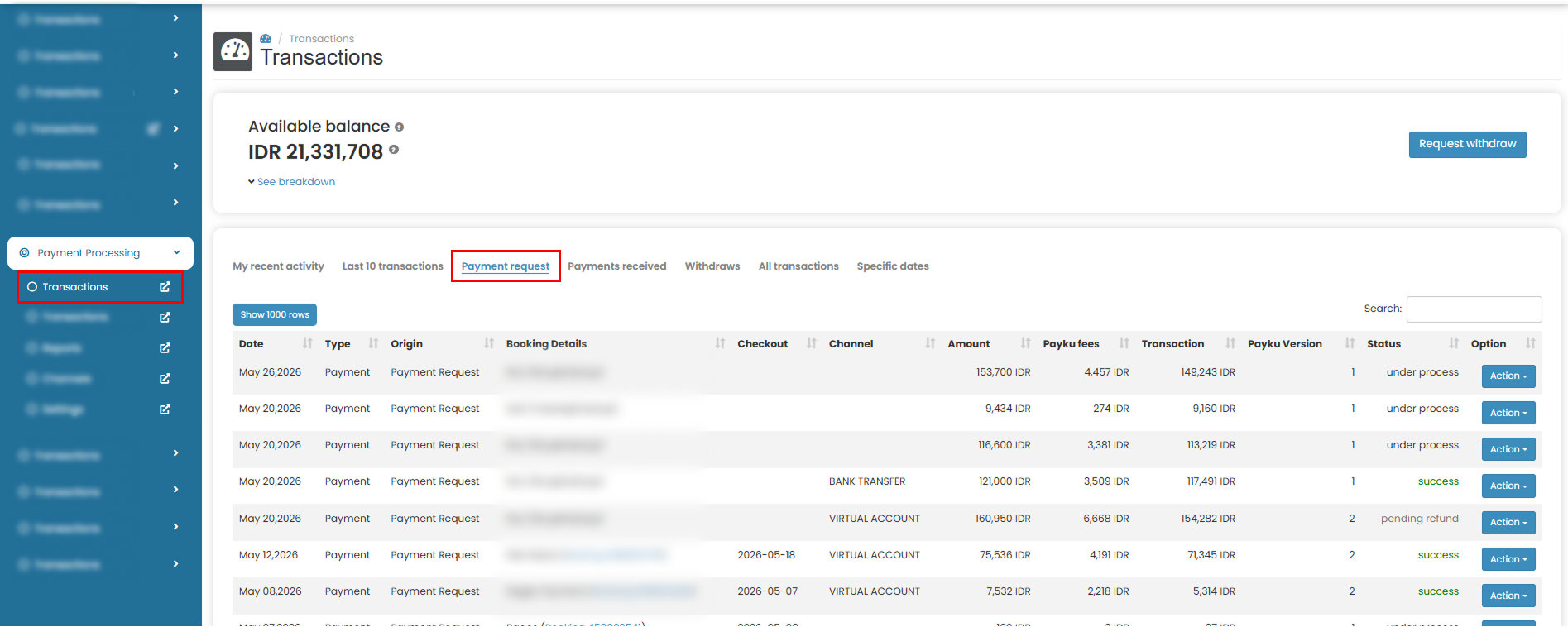
- Navigate to Payment Processing > Transactions.
- Locate the payment request transaction in the transaction list.
- Once the guest completes the payment successfully, the transaction status will be updated automatically and the funds will be reflected in your balance.
Payment request transaction not found
- Refresh the Transactions page and search again.
- Verify that the payment request was sent successfully.
- Check the transaction date range and filters applied to the transaction list.
Transaction status is still Pending
- Confirm with the guest that the payment has been completed successfully.
- Some payment methods may require additional processing time before the status is updated.
- Refresh the page and check again after a few minutes.
Guest completed payment but status has not changed
- Wait a few minutes and refresh the Transactions page.
- Verify that the payment was completed using the correct payment link.
- Contact the PayKu support team if the status remains unchanged for an extended period.
Funds are not reflected in the balance
- Ensure the transaction status is Success.
- Refresh the page to load the latest balance information.
- If the balance is still incorrect, contact the PayKu support team for further assistance.