How To Import Booking
Overview
The Import Booking feature allows you to create multiple reservations at once by uploading an Excel file.
To maintain system performance, the following limits apply:
- Maximum 300 reservations per file upload.
- Maximum 100 nights per reservation.
- Maximum 600 reservations imported within a 24-hour period.
How to Import Reservations
Get the Property Information
Before importing reservations, you need to identify the Room ID and Rate Plan ID that will be used in the import file
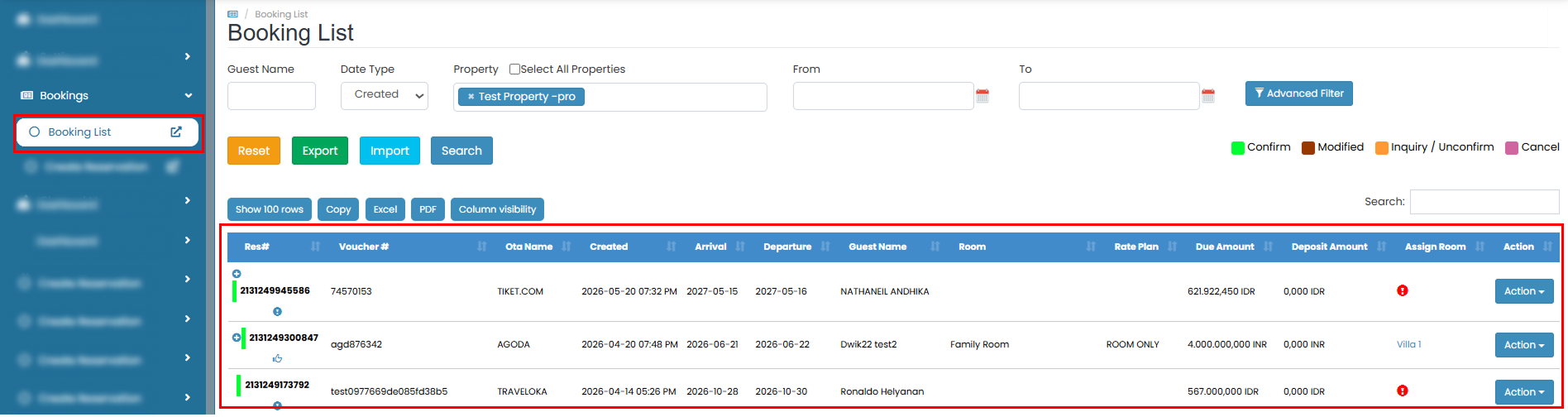
- Navigate to Bookings > Booking List, then click the Import button on the Booking List page.

- You will be redirected to the Import Booking page.
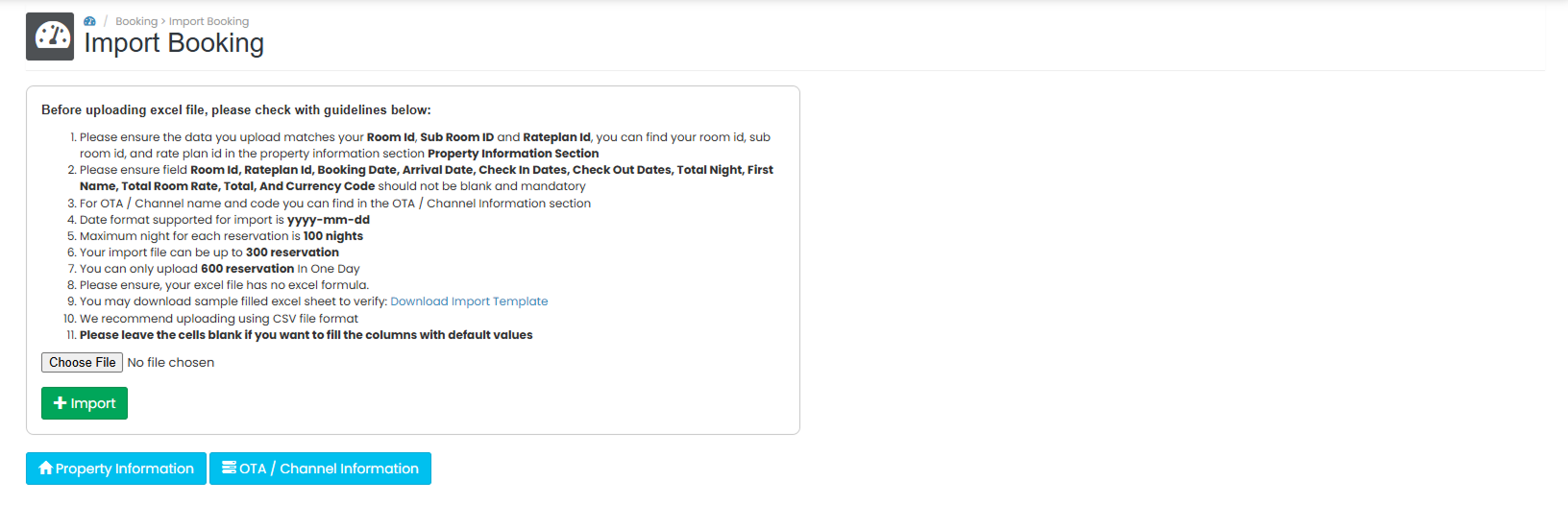
- To view the available room and rate plan information, click Property Information.
!

- To view OTA-related information, click OTA/Channel Information.

Download and Complete the Import Template
While on the Import Booking page, prepare your reservation data using the provided import template.
- If you do not already have a template file, click Download Import Template.
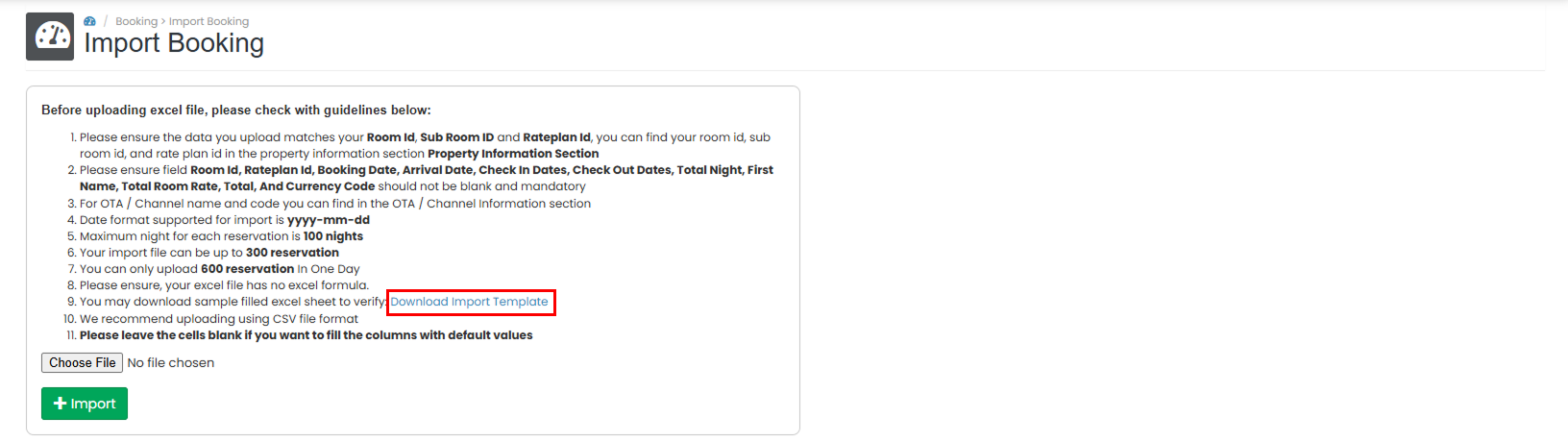
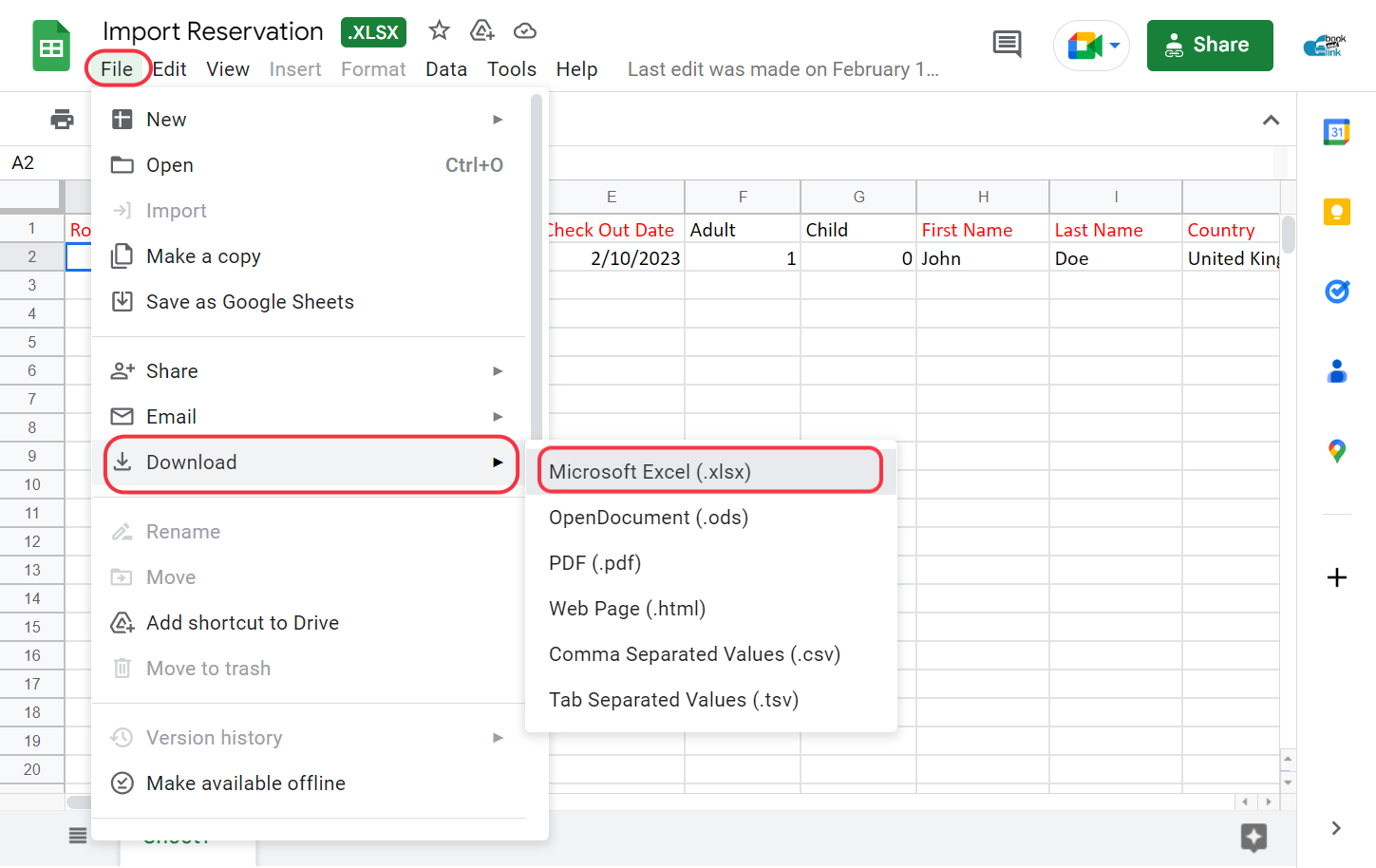
- You will be redirected to Google Sheets.
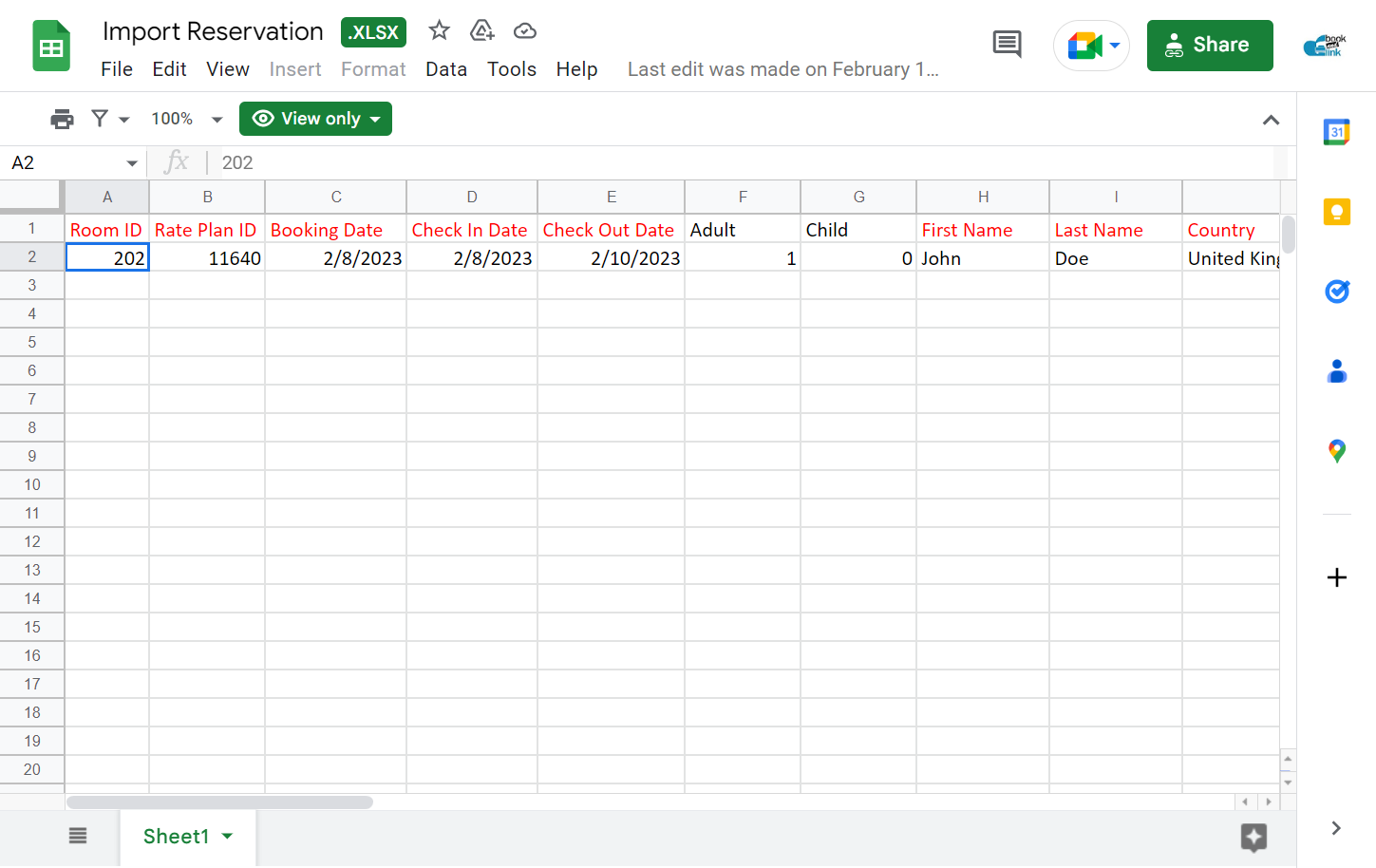
- In the Google Sheets menu, click File > Download > Microsoft Excel (.xlsx) to save a copy to your computer.
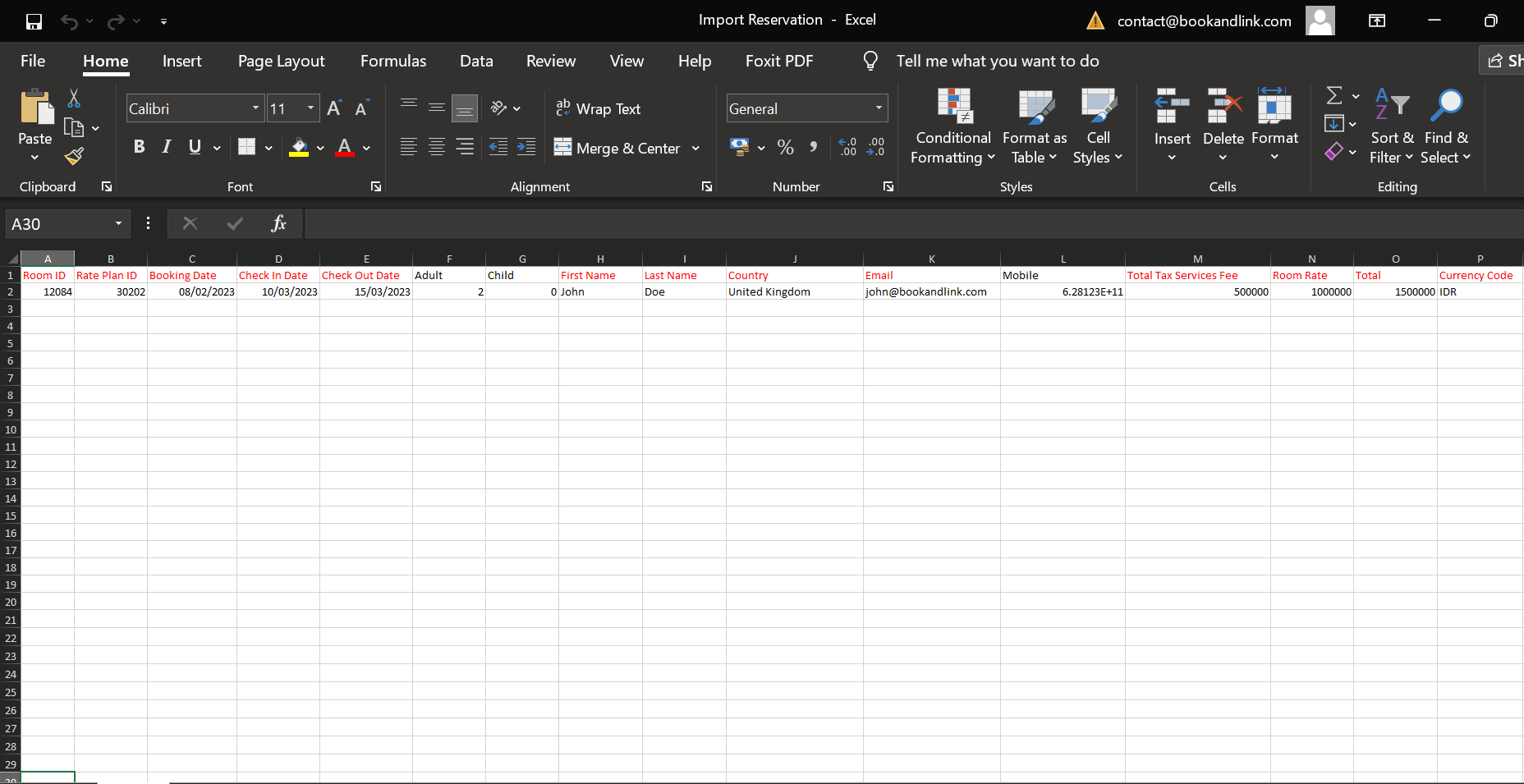
- Open the downloaded file and enter the reservation information.
The following fields are mandatory and cannot be left blank:
Room ID, Rate Plan ID, Booking Status, Booking Date, Arrival Date, Check In Date, Check Out Date, Total Night, First Name, Last Name, Country, Tax Total, Total Room Rate, Total, and Currency Code.
Upload the Completed Template
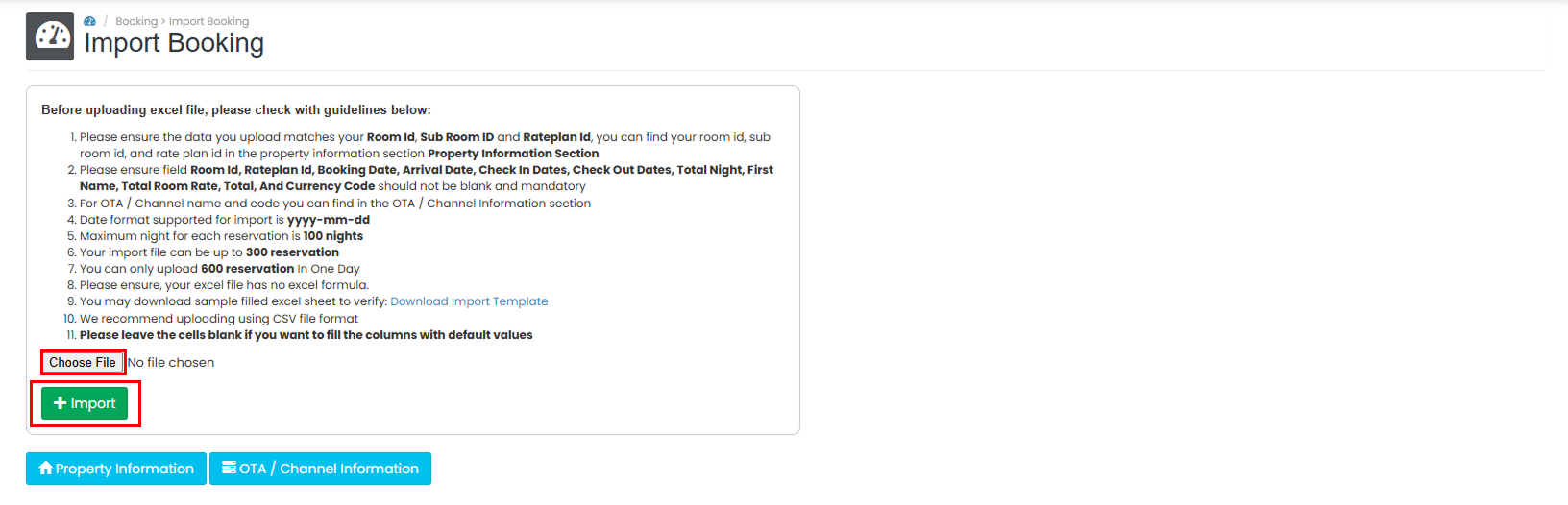
- Select the completed Excel file from the upload field.
- Click Import to upload the reservations and wait until the import process is completed..
Verify the Imported Reservations
After the import process is completed, verify that the reservations have been imported successfully.
- Navigate back to Bookings > Booking List.
- Confirm that the imported reservations appear in the booking list.