Account and Extras
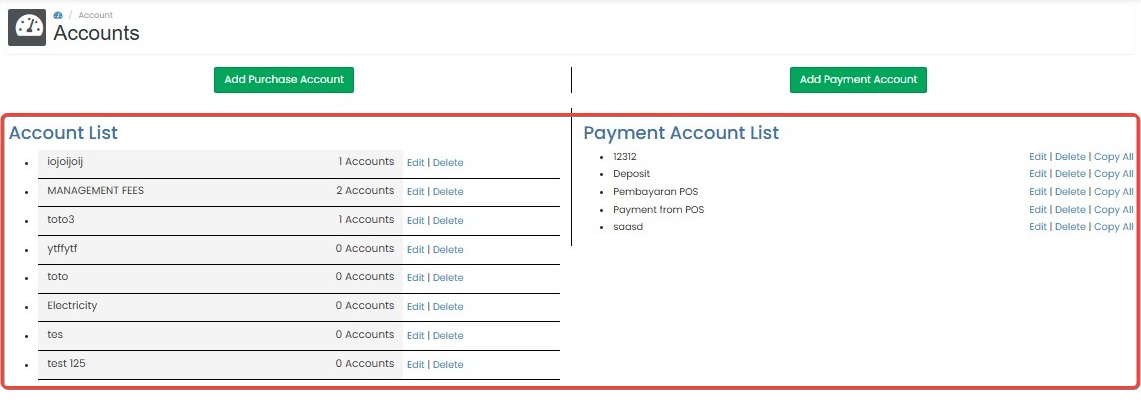
Accounts is a configuration page used to manage internal purchase accounts and payment accounts. These accounts are used to classify transactions properly.
The page is divided into two sections:
- Account List.
- Payment Account List.
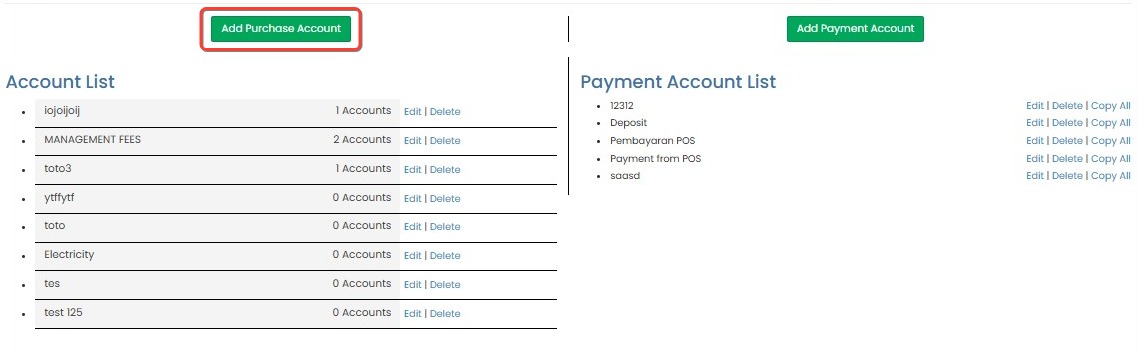
How to Add Purchase Account
- Click the Add Purchase Account button.
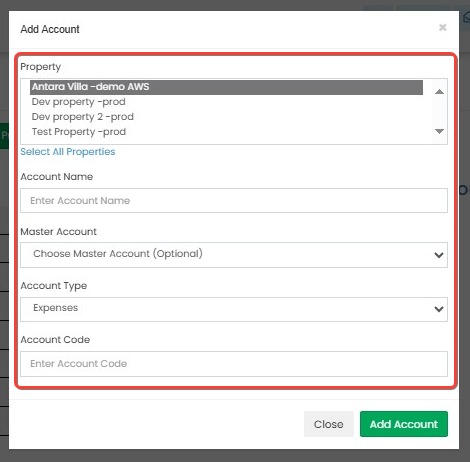
- Fill in the form:
- Property: Select the applicable property (or "Select All Properties").
- Account Name: Enter the name of the account.
- Master Account (Optional): Select a master account if this account is a sub-category.
- Account Type: Choose the account type options.
- Account Code: Internal reference code for the account.
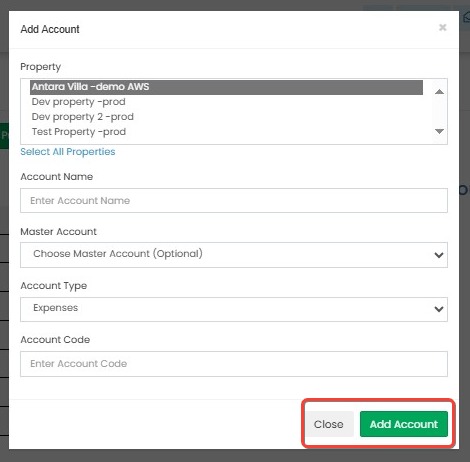
- Click Add Account to save.
[!NOTE]
Troubleshooting Manage Existing Agencies
Edit button not responding
- Refresh the page and try again.
- Ensure you have the correct user permissions to modify agency details.
- Check if the agency was added manually. Only manually added agencies can be edited.
Unable to remove an agency
- Make sure the agency is not currently linked to active rate plans or bookings.
- Try removing after disconnecting the agency from all linked data.
- If the "Remove" button is inactive, check user permission or contact support.
Changes to agency details not saving
- Ensure all required fields (e.g., name, email) are filled in correctly.
- Check internet connection and retry saving.
- Avoid using special characters that may not be allowed in certain fields.
Color or "Copy All" updates not applying across rate plans
- Verify that the agency has multiple rate plans.
- Refresh the page after applying changes to confirm updates.
- Try updating one plan manually to confirm it's not a display issue.
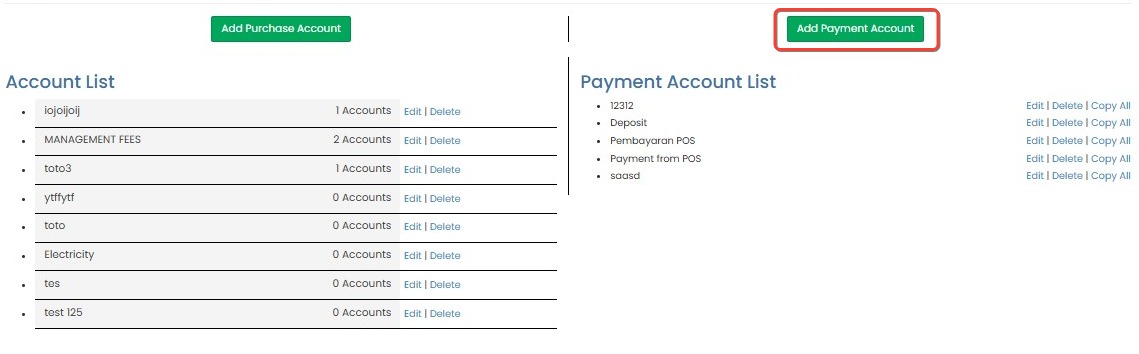
How to Add Payment Account
- Click the Add Payment Account button.
- Fill in the following field:
- Account Name: Enter the name of the payment account.
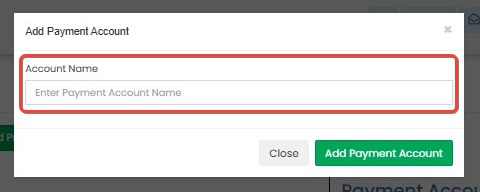
- Account Name: Enter the name of the payment account.
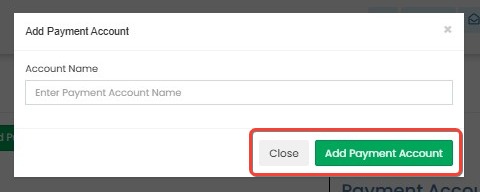
- Click Add Payment Account to save.
[!NOTE]
Troubleshooting Add Payment Account
Add Payment Account button not responding
- Refresh the page and try again.
- Make sure you have permission to manage payment settings.
- Disable any browser extensions that might interfere with UI elements.
Error when saving the payment account
- Ensure the Account Name field is not empty.
- Avoid using special characters or symbols that may not be accepted.
- Check for duplicate account names; use a unique name if necessary.
New account not appearing after saving
- Wait a few seconds and refresh the page.
- Confirm the account wasn't added with a typo or unexpected spacing.
- Try clearing browser cache if the issue persists.
How to Manage Existing Accounts
On the main page:
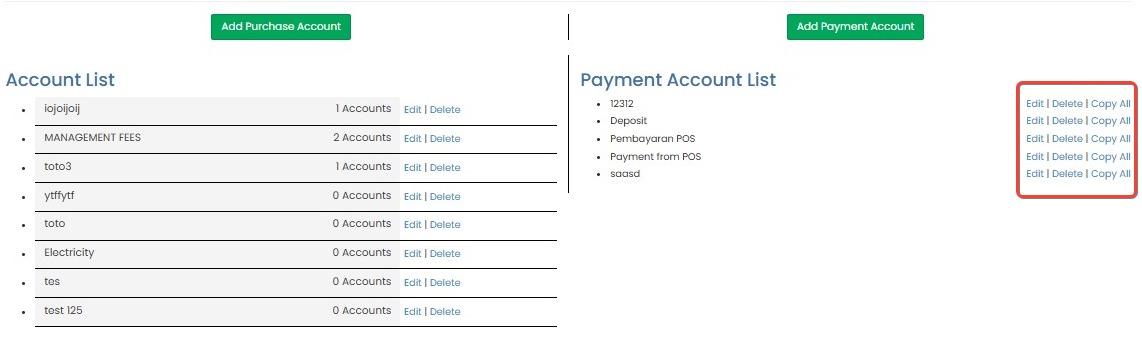
- Use the Edit or Delete links to manage any account.
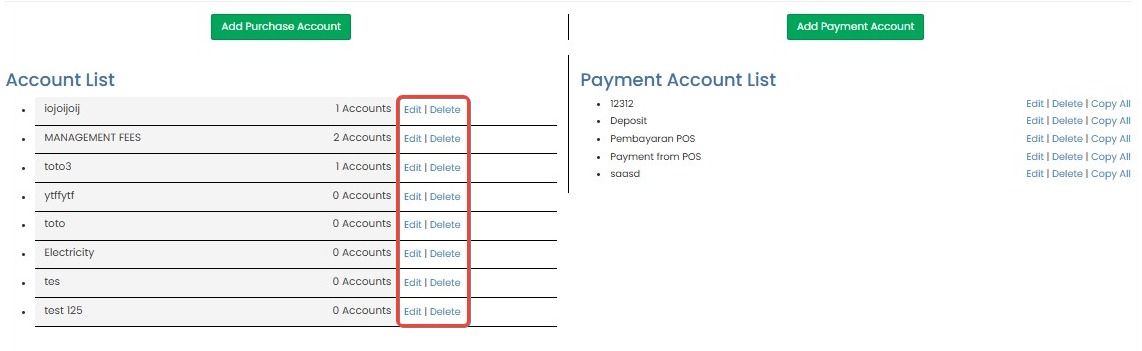
- For payment accounts, you may also use Copy All to replicate account settings across rate plans or modules.
[!NOTE]
Troubleshooting Manage Existing Accounts
Edit/Delete buttons not responding
- Make sure you are connected to the internet and the page is fully loaded.
- Check if you have sufficient user permissions to manage accounts.
- Try refreshing the page or using a different browser.
Changes made in Edit are not saved
- Ensure all required fields are filled correctly.
- Avoid using unsupported characters or symbols.
- After clicking "Save", wait a few seconds for confirmation or feedback.
Account not removed after clicking Delete
- Confirm the deletion action if a confirmation dialog appears.
- Refresh the page to ensure the change is reflected.
- If the problem persists, check for system restrictions on deleting certain accounts.
Copy All does not apply settings to other rate plans
- Ensure that the account is active and properly saved before using Copy All.
- Wait a few seconds after clicking the button to allow the system to process the update.
- Refresh the view or navigate to affected rate plans to verify if settings were applied.